 Vatsal Shah
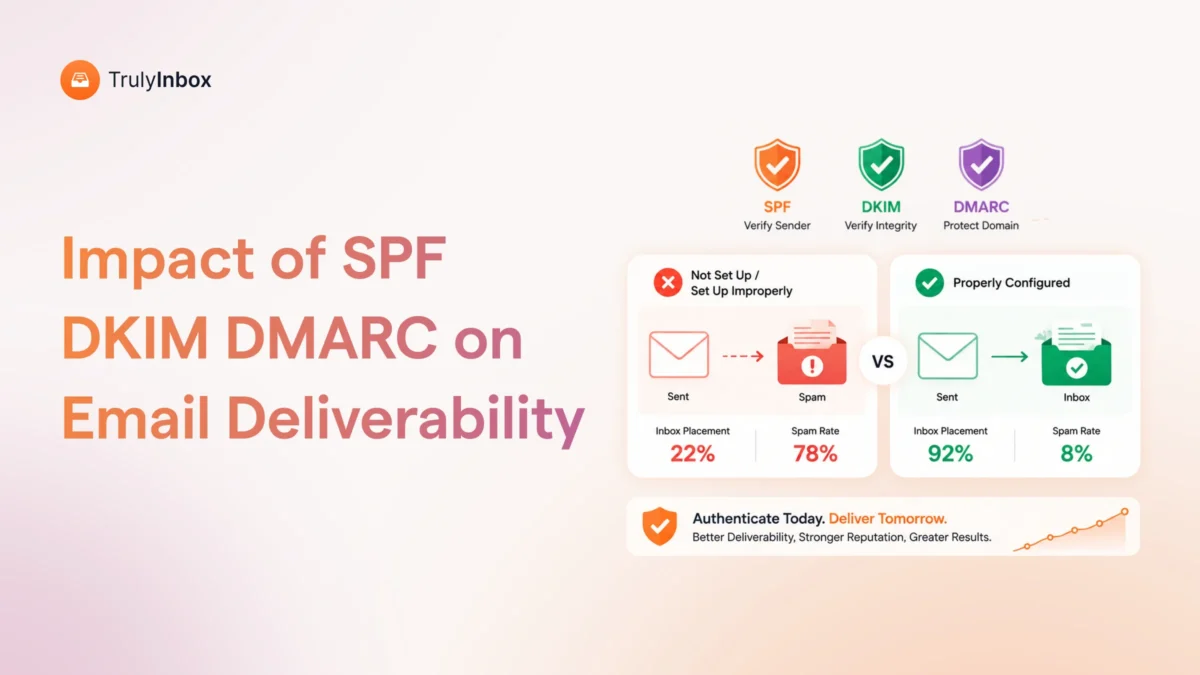
 You set up SPF, DKIM, and DMARC. Your emails still hit spam.
If that sounds familiar, you’re not alone. It’s the most common complaint across Reddit threads and cold email communities.
The problem? Most guides treat authentication as the finish line. It’s actually the starting line.
I run TrulyInbox, an email warm-up tool, and I monitor deliverability across thousands of inboxes daily. That vantage point has made one thing clear.
Gmail decides inbox placement based on three things:
- Authentication (the baseline)
- Domain reputation (the real gatekeeper)
- Engagement signals (the ongoing test)
Most advice covers the first and ignores the other two.
Quick disclosure: TrulyInbox is a warm-up product, and I’ll flag where that’s relevant. But this guide covers Gmail deliverability from the ground up, not just warm-up.
TL;DR — What Gmail Actually Cares About (And What It Doesn’t)
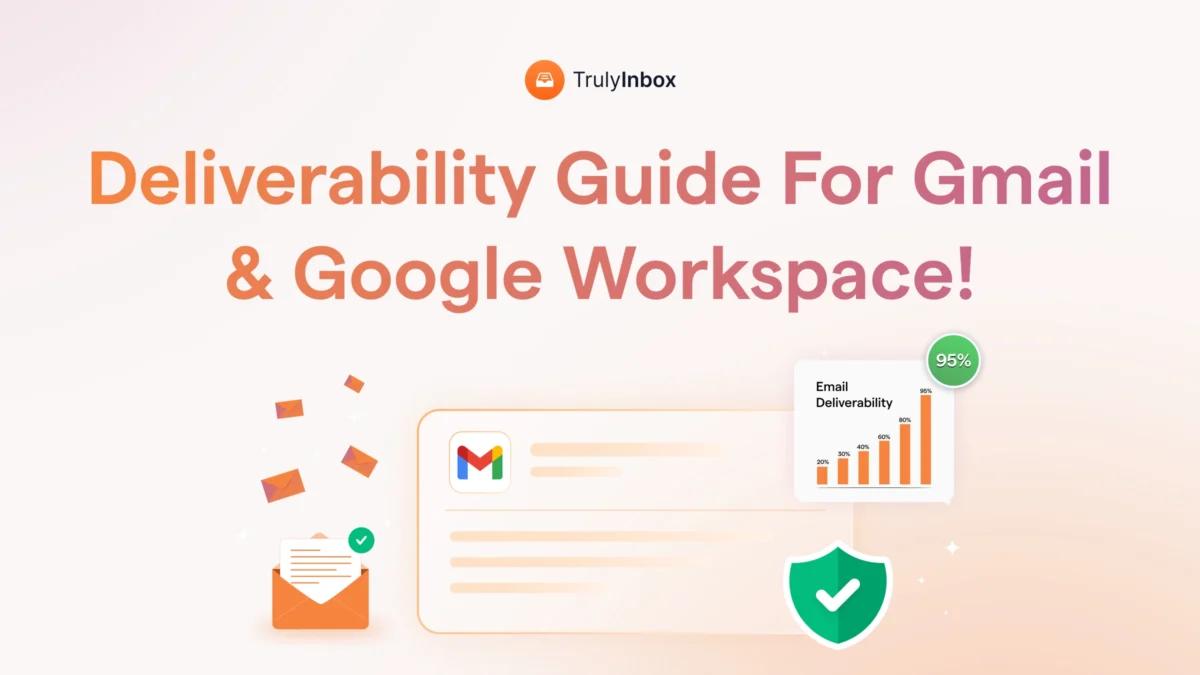
Gmail deliverability comes down to three pillars. Authentication is the baseline.
Domain reputation is the real gatekeeper. And engagement signals are the ongoing test.
Here’s what matters most. Gmail prioritizes domain reputation over IP reputation. This one difference changes how you should approach deliverability for Gmail specifically.
A new domain without warm-up history will land in spam. It doesn’t matter if your SPF, DKIM, and DMARC records are perfect.
Once your emails arrive, Gmail watches what recipients do with them.
Opens, replies, and moves from spam to inbox actively reshape where Gmail places your future emails.
Google also enforces a 0.3% spam complaint threshold. But that’s a ceiling, not a target. You should aim for under 0.1% to stay safe.
I’ll walk through each of these in detail below. That includes a diagnostic framework if your emails are already landing in spam.
Gmail Deliverability vs. Email Deliverability — Why Gmail Plays by Different Rules
Not all inbox providers filter email the same way. Gmail has its own playbook, and it’s different from Outlook, Yahoo, or anyone else.
For starters, Gmail represents 30 to 35% of most sender lists. It’s the dominant inbox provider by a wide margin.
Gmail prioritizes domain reputation over IP reputation. Outlook and Yahoo lean more heavily on IP signals. This distinction alone changes your entire deliverability strategy.
On top of that, Gmail uses AI-powered, engagement-based filtering. It watches how your specific recipients interact with your specific emails.
That means inbox placement can vary by recipient. The same email can land in Primary for one person and Promotions for another.
Speaking of tabs, let’s clear up a common misconception. Gmail’s tab system includes:
- Primary
- Promotions
- Updates
- Social
- Forums
Landing in Promotions is not the same as landing in spam. “Delivered” doesn’t always mean “seen,” but Promotions is still the inbox.
One more technical detail worth knowing. Gmail clips emails over 102KB. When that happens, it hides your unsubscribe link, which can trigger additional spam signals.
Most deliverability guides give generic advice that applies to every provider equally. This guide doesn’t. Everything from here forward is Gmail-specific.
The Authentication Baseline: SPF, DKIM, DMARC (And Why It’s Not Enough)
Authentication is the first gate Gmail checks. Without it, your emails get rejected outright.
But passing authentication doesn’t guarantee inbox placement. Think of it as the minimum viable setup.
Authentication proves you’re not an impersonator. It doesn’t prove you’re wanted. That distinction is critical.
Let’s break down the three protocols and what Gmail requires from each.
Requirements for All Senders
If you send any email that touches a Gmail inbox, you need to meet these requirements:
- SPF or DKIM (at least one must pass)
- Valid PTR records for your sending IPs
- TLS connection for email transmission
- Spam complaint rate below 0.3%
- RFC 5322 compliant message formatting
- No Gmail From: header impersonation
These are the bare minimum. Missing any one of them can result in Gmail rejecting your emails entirely.
Additional Requirements for Bulk Senders (5,000+/day)
If you send more than 5,000 emails per day, Gmail holds you to a higher standard. Google updated these requirements in February 2024, and enforcement is now active.
You need all of the following:
- SPF and DKIM and DMARC (all three, not just one)
- DMARC alignment (your From: domain must match your SPF or DKIM domain)
- One-click unsubscribe in every marketing email
- Unsubscribe requests honored within 2 days
The one-click unsubscribe requirement caught many senders off guard. If you send marketing emails at scale, this is non-negotiable.
The Authentication Reality Check
Reddit is full of threads from senders with perfect authentication who still land in spam. Here’s why that happens.
Authentication is a pass/fail gate. It tells Gmail you are who you claim to be. It says nothing about whether recipients want your emails.
As one Reddit user put it, even with SPF, DKIM, and DMARC configured correctly, emails can still hit spam, especially with Google’s filters.
So what fills the gap? Domain reputation and engagement signals. Those are the next two sections.
Domain Reputation: The #1 Factor Gmail Uses to Filter Your Emails
If authentication is the entry gate, domain reputation is the sorting mechanism. Gmail uses it to decide whether your emails deserve the inbox or the spam folder.
Unlike Outlook and Yahoo, Gmail weighs domain reputation more heavily than IP reputation.
Most senders use shared IPs through their ESP, which makes IP reputation unreliable as a per-sender signal.
That’s why domain reputation is the real differentiator.
You can check your domain reputation using Google Postmaster Tools. Once set up, it shows your reputation as one of four levels:
- High: Your emails reach the inbox consistently
- Medium: Most emails reach the inbox, but some may get filtered
- Low: Many emails get sent to spam
- Bad: Nearly all your emails hit spam
Now, what actually damages your domain reputation? Here are the most common causes:
- Spam complaint rates above 0.1%
- Bounce rates above 2%
- Hitting spam traps
- Sudden spikes in sending volume
- Sending to purchased or unverified lists
On the flip side, here’s what builds a strong reputation:
- Consistent daily sending volume
- Low complaint rates
- Positive engagement signals (opens, replies)
- Gradual volume increases over time
- Clean, verified email lists
One more thing worth considering. Use separate subdomains for different email types. Send marketing from marketing.yourdomain.com, transactional from notify.yourdomain.com, and cold outreach from outreach.yourdomain.com.
This protects your primary domain’s reputation. If one channel takes a hit, the others stay safe.
Email Warm-Up: Why New Domains and Inboxes Get Flagged
A brand-new domain has zero reputation with Gmail. No sending history, no engagement data, nothing.
Gmail treats unknown senders with suspicion by default. So if you buy a new domain and start sending cold emails on day one, you’re going straight to spam.
This is where email warm-up comes in. It’s the process of gradually building your domain’s reputation before you launch real campaigns.
Full disclosure: I build TrulyInbox, a peer-to-peer email warm-up tool. This section is where that context matters. But warm-up is a real deliverability requirement regardless of which tool you use.
What Email Warm-Up Actually Does
Warm-up simulates organic sending behavior. It generates the positive signals Gmail needs to trust your domain.
During warm-up, emails get opened, replied to, and moved out of spam. These actions train Gmail’s filters to treat your domain as legitimate.
This isn’t a hack or a shortcut. It’s the same process any real sender goes through naturally when building a list. Warm-up just makes it systematic and compressed.
Warm-Up Schedule for New Gmail/Google Workspace Accounts
Rushing the warm-up process can damage your reputation before it’s established. Follow a gradual ramp-up instead.
Here’s a realistic schedule:
| Week | Daily Volume | Notes |
| Week 1 | 10 to 20 emails/day | Start slow, monitor bounces |
| Week 2 | 30 to 50 emails/day | Check Postmaster Tools reputation |
| Week 3 | 50 to 100 emails/day | Monitor spam complaint rate |
| Week 4 | 100 to 200 emails/day | Verify reputation is stable |
| Week 5+ | Gradual ramp to target | Increase only if metrics stay clean |
At each stage, monitor these three metrics:
- Bounce rate (keep under 2%)
- Spam complaint rate (keep under 0.1%)
- Domain reputation in Postmaster Tools
If any metric looks off, pause and reduce volume. Don’t push through bad signals.
When You Need Warm-Up (And When You Don’t)
Not every situation requires warm-up. Here’s a quick breakdown.
You need warm-up when:
- You’re using a brand-new domain
- You’re setting up a new inbox
- Your domain has been dormant for 30+ days
- You’re recovering from a spam flag
- You’re switching ESPs
- You’re starting cold outreach
You don’t need warm-up when:
- Your domain already has consistent sending history and good reputation
- You’re adding a few email addresses to an already-active domain
When in doubt, warm up. The downside of unnecessary warm-up is two weeks of patience. The downside of skipping it is a burned domain.
Gmail’s Engagement Signals: What Happens After Your Email Arrives
Authentication gets you through the door. Domain reputation determines your starting position. But engagement signals decide where Gmail puts your emails going forward.
Gmail watches how recipients interact with every email you send. Then it uses that data to adjust future placement.
Positive signals that help your placement:
- Opening your emails
- Replying to your emails
- Moving your email from spam or Promotions to Primary
- Starring or marking as important
- Clicking links
- Adding you to contacts
Negative signals that hurt your placement:
- Deleting without opening
- Marking as spam
- Consistently ignoring your emails
- Unsubscribing
Here’s the part most senders miss. Gmail personalizes placement at the individual recipient level. One person who always opens your emails will see them in Primary. Another person who ignores them might see them in Promotions or spam.
This makes engagement a feedback loop, not a one-time filter. Good engagement today improves your placement tomorrow. Bad engagement today makes tomorrow worse.
The practical takeaway is straightforward. Send emails people actually want to read and respond to. Segment your lists ruthlessly. And remove unengaged contacts every 90 days.
Content and Formatting Mistakes That Trigger Gmail’s Spam Filters
Even with solid authentication and a good domain reputation, your email content can still trip Gmail’s filters. Here are the most common content-level triggers.
Text-to-image ratio matters. Aim for at least 60% text to 40% images. Emails that are mostly images with minimal text raise red flags.
Keep your total email size under 102KB. Gmail clips anything larger, which hides your unsubscribe link and can trigger additional spam signals.
Be careful with links in your emails:
- Avoid URL shorteners like bit.ly or tinyurl
- Limit the total number of links
- Never link to blacklisted or newly registered domains
Spam trigger words are less impactful than they used to be. Gmail’s AI has grown more sophisticated in 2026. However, patterns like ALL CAPS, excessive exclamation marks, and “Act now!!!” still get flagged.
Your email signature deserves attention too. As one Reddit user shared, reducing links and images in their email signature fixed their deliverability issues. Keep signatures minimal. One image, limited links, no walls of social icons.
A few more formatting rules to follow:
- Use clean, valid HTML
- Never hide text using CSS or font-size:0 tricks
- Avoid misleading Re: or Fwd: prefixes on non-reply emails
- Skip ALL CAPS subject lines
- Don’t use emojis that imitate verification badges
These content rules apply regardless of your sending volume. A single badly formatted email won’t destroy your reputation. But a pattern of them will.
Sending TO Gmail vs. Sending FROM Gmail: Two Different Problems
This is a distinction no other deliverability guide makes clearly. When people search “gmail deliverability,” they mean one of two things.
Problem 1: Sending TO Gmail inboxes. You’re a marketer or outbound sender trying to reach people who use Gmail. Your challenge is authentication, domain reputation, engagement, and content optimization. Everything in the sections above applies here.
Problem 2: Sending FROM Gmail or Google Workspace. You’re using Gmail as your sending platform. This creates a different set of constraints.
Here are the sending limits you need to know:
- Gmail (free): 500 emails per day
- Google Workspace: 2,000 emails per day
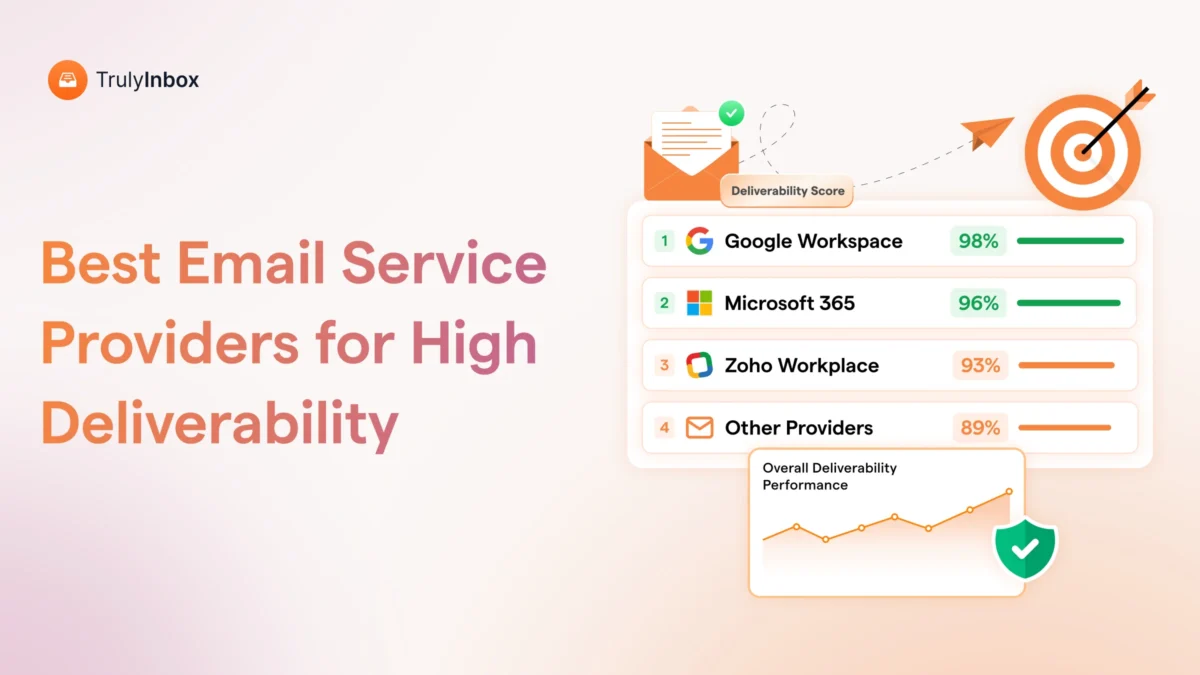
When you send from Google Workspace, you don’t get a dedicated IP. Your deliverability depends entirely on your domain reputation and sending behavior.
There’s also shared IP risk. Other senders on the same Google IP pool can affect your deliverability, even if you do everything right.
This is why cold email senders using Google Workspace need warm-up especially. No sending history combined with cold outreach to strangers creates maximum spam risk.
If you’re doing cold outreach from Google Workspace, follow this rule. Don’t send from your primary domain. Use a separate subdomain like outreach.yourdomain.com to protect your main domain’s reputation.
And if you need to send more than 10,000 emails per day, you’ve outgrown Gmail and Workspace. At that volume, you need a dedicated ESP like SendGrid, Mailgun, or Amazon SES.
How to Diagnose Gmail Deliverability Issues (Step-by-Step)
If your emails are already landing in spam, prevention advice won’t help. You need a troubleshooting framework.
Here’s the exact diagnostic process I follow when investigating deliverability drops.
Step 1: Check your authentication.
Use Google Admin Toolbox to verify SPF, DKIM, and DMARC are properly configured. If any protocol fails, fix it before moving on.
Step 2: Check your domain reputation.
Log into Google Postmaster Tools and go to the Domain Reputation dashboard. If it shows “Bad” or “Low,” that’s your primary problem.
Step 3: Check your spam complaint rate.
In Postmaster Tools, go to the Spam Rate section. Your rate must stay under 0.1%. If it’s anywhere near 0.3%, you’re in the danger zone.
Step 4: Check blacklists.
Run your domain through MXToolbox’s blacklist check. Also verify your domain isn’t flagged on Google Safe Browsing.
Step 5: Review your sending patterns.
Ask yourself these questions:
- Did you spike volume suddenly?
- Is this a new domain without warm-up?
- Did you go dormant for weeks and then send a large batch?
Any of these patterns can trigger Gmail’s filters.
Step 6: Test your email content.
Send a test email to yourself and check for clipping. Run your email through mail-tester.com for a spam score. Review your email signature for excessive links and images.
Step 7: Check engagement metrics.
Look at your open rates and reply rates. High delete-without-reading rates and high unsubscribe rates signal to Gmail that recipients don’t want your emails.
If you find problems at any step, here’s the recovery plan:
- Reduce sending volume to 20 to 30% of your normal level
- Re-warm the domain gradually using an email warm-up tool
- Clean your list aggressively and remove anyone who hasn’t engaged in 90 days
- Monitor Postmaster Tools weekly
- Increase volume only after your reputation improves
Recovery takes time. Expect 2 to 4 weeks minimum before you see meaningful improvement.
Tools to Monitor Your Gmail Deliverability
You can’t fix what you can’t measure. Here are the tools I actually use daily to monitor Gmail deliverability.
Free tools:
- Google Postmaster Tools: The primary resource. Shows domain reputation, spam rate, authentication status, and encryption stats. Set this up before anything else.
- Google Safe Browsing: Check if your domain or any linked URLs are flagged as unsafe at transparencyreport.google.com/safe-browsing.
- Google Admin Toolbox: Verify your SPF, DKIM, and DMARC records at toolbox.googleapps.com.
- MXToolbox: Run blacklist checks across 100+ blacklists and verify DNS records.
- Mail-tester.com: Get a quick spam score for individual emails. Useful for content testing, but limited to a few free checks per day.
Paid tools:
- GlockApps: Inbox placement testing across multiple providers including Gmail. Useful for seeing exactly where your emails land before you send a campaign.
- TrulyInbox: Email warm-up and deliverability improvement. Disclosure: this is my product. It’s relevant if you need to build or recover domain reputation through warm-up.
You don’t need all of these. At minimum, set up Google Postmaster Tools and run a blacklist check with MXToolbox. Those two cover the essentials.
FAQs About Gmail Deliverability
1. Why Are My Emails Going to Spam in Gmail Even With SPF and DKIM Set Up?
Authentication proves you’re not an impersonator, but it doesn’t prove you’re wanted. Gmail also weighs domain reputation and engagement signals. If your domain is new, hasn’t been warmed up, or has a history of spam complaints, authentication alone won’t save you.
2. What Spam Complaint Rate Does Gmail Allow?
Gmail requires senders to keep spam rates below 0.3% in Google Postmaster Tools. But 0.3% is the danger zone, not the target. Aim for under 0.1% for healthy deliverability.
3. Does Gmail Care More About Domain Reputation or IP Reputation?
Domain reputation. Gmail prioritizes domain-level signals because most senders use shared IPs through their ESPs. That makes IP reputation unreliable as a per-sender signal.
4. How Long Does It Take to Warm Up a New Domain for Gmail?
Plan for a minimum of 2 to 4 weeks with gradual volume increases. Start at 10 to 20 emails per day and ramp slowly. Rushing the process can damage your domain reputation before it’s established.
5. Does Email Warm-Up Actually Improve Gmail Deliverability?
Yes, for new or dormant domains. Warm-up generates positive engagement signals like opens, replies, and inbox moves. These signals build your domain’s reputation with Gmail before you start real campaigns.
6. How Do I Check My Gmail Deliverability?
Set up Google Postmaster Tools. It shows your domain reputation, spam rate, and authentication status directly from Google’s data. For quick individual tests, send a test email to a Gmail account and check whether it lands in Primary, Promotions, or Spam.