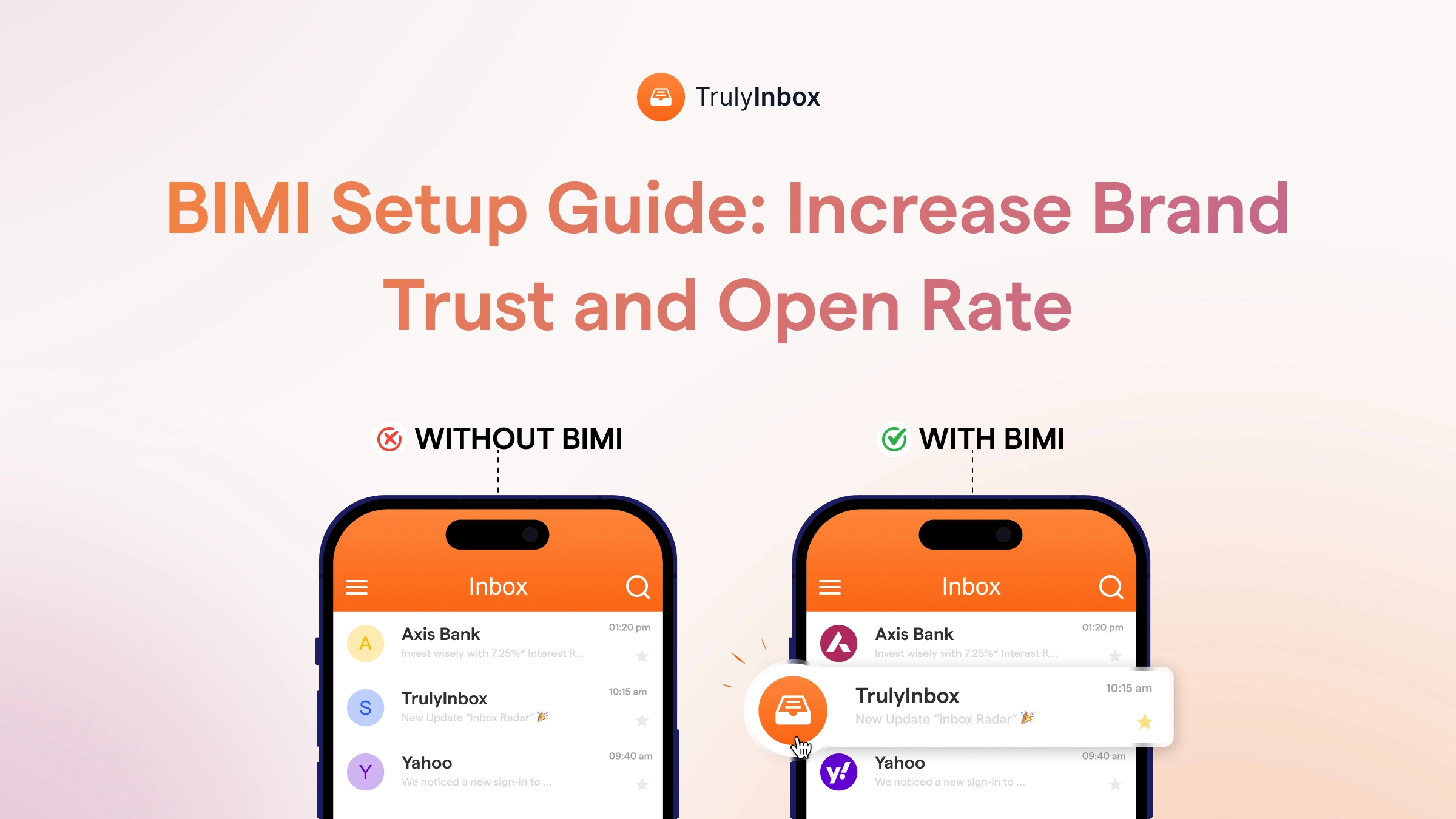

Some brands show their logo right next to every email in Gmail. Others get a gray circle with a letter initial.
The difference is BIMI. It’s an email standard that displays your brand logo next to authenticated emails in supported inboxes.
Most guides tell you to set up BIMI and move on. But they skip the parts that actually matter:
- A Verified Mark Certificate costs $750+/year.
- Microsoft Outlook doesn’t support BIMI at all.
- Your domain needs full DMARC enforcement before BIMI even works.
Before you invest time or money, you need the full picture. That means understanding the requirements, costs, and whether BIMI fits your setup.
I work in email deliverability and run TrulyInbox, a warm-up tool. BIMI sits on top of the same authentication stack I help senders configure daily.
What Is BIMI (Brand Indicators for Message Identification)?
BIMI stands for Brand Indicators for Message Identification. Most people pronounce it “bih-mee.”
The AuthIndicators Working Group maintains this specification. Members include Google, Valimail, Mailchimp, Fastmail, Proofpoint, and Twilio SendGrid.
Here’s what BIMI does in simple terms. It tells supporting email providers to display your brand logo next to your authenticated emails.
Without BIMI, recipients see a generic gray circle with your name’s first letter. With BIMI, they see your actual brand logo instead.
Gmail takes it a step further. Senders with a VMC (Verified Mark Certificate) also get a blue verified checkmark next to their logo.
Many people treat BIMI as a branding feature. That framing misses the point.
BIMI requires strict email authentication, specifically DMARC enforcement. So adopting BIMI also forces you to strengthen your domain’s security against spoofing and phishing.
A more accurate framing: BIMI is a security standard with branding benefits.
Adoption remains extremely low. A Validity analysis found that 90.85% of domains have no BIMI record at all.
That low adoption creates an opportunity. Early adopters get outsized brand differentiation in the inbox right now.
Do You Actually Need It?
BIMI (Brand Indicators for Message Identification) lets you display your brand logo in supported inboxes. It works with Gmail, Yahoo Mail, Apple Mail, and Fastmail.
But BIMI doesn’t work on its own. It requires DMARC enforcement (p=quarantine or p=reject) as a prerequisite.
If your domain lacks SPF, DKIM, and DMARC authentication, BIMI won’t function. You need to fix authentication first.
There are three paths to BIMI, and the cost varies dramatically:
- Self-asserted (free): Works on Yahoo Mail and Fastmail. Gmail and Apple Mail ignore it.
- CMC (~$650–1,100/year): Works on Gmail without a trademark. Shows your logo but no blue checkmark.
- VMC (~$750–1,700/year): Works on Gmail with the blue verified checkmark. Requires a registered trademark.
One major limitation stands out. Microsoft Outlook does not support BIMI. If your audience sits primarily on Outlook (common in B2B), BIMI won’t show your logo there.
The setup process involves five steps:
- Enforce DMARC on your domain
- Create an SVG Tiny P/S version of your logo
- Obtain a CMC or VMC (optional for Yahoo/Fastmail)
- Publish a BIMI DNS TXT record
- Validate and test
For cold email senders, BIMI itself isn’t critical. But the DMARC enforcement it requires protects your deliverability regardless.
I’ll break down each path below, walk through the setup steps, and give you an honest cost-benefit analysis.
How BIMI Works? The Technical Flow
BIMI runs entirely behind the scenes. The recipient never sees the process, only the result.
Here’s what happens when you send an email from a BIMI-enabled domain:
- You send an email from your domain.
- The recipient’s email provider (for example, Gmail) receives it.
- The provider checks your domain’s SPF record, DKIM, and DMARC records.
- If the email passes DMARC authentication with alignment, the provider looks up your BIMI DNS record.
- Your BIMI record points to your logo file (SVG) and your certificate (VMC or CMC).
- The provider verifies the certificate and fetches your logo.
- Your logo appears next to the email in the recipient’s inbox.
The order matters here. If DMARC fails, the provider never checks for BIMI. Your logo simply won’t display.
Two additional points are worth noting:
- If you use self-asserted mode (no certificate), Gmail and Apple Mail skip the logo. Yahoo Mail and Fastmail still display it.
- The entire process happens automatically. Recipients just see your logo, or they don’t.
BIMI Requirements: What You Need Before You Start?
Most BIMI setup failures happen during the prerequisite stage. They don’t happen during the DNS step.
Before you touch a BIMI record, make sure these five requirements are in place.
1. SPF and DKIM Authentication
Every email from your domain must pass SPF and DKIM checks. Both must align with your From domain.
Alignment means the domains in your SPF and DKIM records match the domain in your From address. Without alignment, DMARC fails, and BIMI never activates.
If you haven’t configured these protocols yet, start there. You can use TrulyInbox’s free SPF generator and DKIM generator to create the records.
For the full walkthrough, check out this guide on how to set up SPF, DKIM, and DMARC.
2. DMARC at Enforcement Level
Your DMARC policy must be set to p=quarantine or p=reject. A policy of p=none does not satisfy BIMI requirements at all.
You also need to set pct=100 for full enforcement. Partial rollouts won’t work.
This is the hardest prerequisite for most organizations. Moving from p=none to enforcement without breaking legitimate mail flows takes 2 to 6 months of monitoring.
You can use TrulyInbox’s free DMARC generator to create or check your record.
3. A BIMI-Compliant SVG Logo
Your logo must use the SVG Tiny 1.2 Portable/Secure format. This is not a regular SVG file.
SVG Tiny P/S prohibits scripts, external resources, links, and animations. The logo must also be square.
You need to host it on a publicly accessible HTTPS URL. This specific format requirement trips up almost every design team.
Here are two tools that help with conversion and validation:
- BIMI Group’s SVG Assistant tool
- CaptainDNS SVG Converter
I’ve seen BIMI setups stall for weeks because the logo was a standard SVG. Always validate the file format before moving forward.
4. A Trademark (for VMC Only)
A VMC requires your logo to be a registered trademark. The trademark office must appear on the certificate authority’s accepted list.
Not all national offices qualify. Check the CA’s accepted list before purchasing.
If you don’t have a trademark, the CMC path removes this requirement entirely.
5. A Certificate (VMC or CMC) — Required for Gmail and Apple Mail
Gmail requires either a VMC or CMC to display your logo. Apple Mail requires a VMC specifically.
Yahoo Mail and Fastmail display logos without any certificate through self-asserted mode. So the certificate requirement depends on your audience.
Current certificate authorities offering VMCs and CMCs include:
- DigiCert
- Entrust
- Sectigo
- GlobalSign
- SSL.com
VMC vs CMC vs Self-Asserted: The Three BIMI Paths (and What Each Costs)
This is where most guides fall short. They mention BIMI’s cost in passing without comparing the three distinct paths.
Each path differs in cost, requirements, and inbox coverage. Here’s the full breakdown.
Self-Asserted BIMI (Free)
Self-asserted BIMI is the simplest option. You publish a BIMI DNS record pointing to your SVG logo with no certificate attached.
Where it works:
- Yahoo Mail
- Fastmail
Where it doesn’t work:
- Gmail (requires a certificate)
- Apple Mail (requires a VMC)
Cost: $0. You only need DNS access and logo hosting.
Best for: Small businesses testing BIMI or senders whose audience primarily uses Yahoo.
The limitation is clear. Gmail users won’t see your logo at all. You also get no verified checkmark anywhere.
CMC — Common Mark Certificate (~$650–$1,100/year)
A CMC proves your organization controls the logo. It does not require a trademark.
Gmail started accepting CMCs in September 2024. This is the biggest recent development in BIMI accessibility.
Where it works:
- Gmail (logo displayed, no blue checkmark)
- Yahoo Mail
- Fastmail
Where it doesn’t work:
- Apple Mail (requires a VMC)
Key details:
- No trademark required. You must prove 12+ months of prior public logo use instead.
- A single CMC can cover up to 250 sending domains in Gmail.
- Cost ranges from ~$650 to $1,100/year depending on the certificate authority and term length.
Best for: Small-to-mid businesses without a trademark, startups, and multi-domain senders.
VMC — Verified Mark Certificate (~$750–$1,700/year)
A VMC is the premium option. It cryptographically binds your logo to a registered trademark.
Where it works:
- Gmail (logo + blue verified checkmark)
- Yahoo Mail
- Apple Mail
- Fastmail
Key details:
- Requires a registered trademark with a recognized trademark office.
- Each domain and each unique logo needs its own VMC.
- Cost ranges from ~$750 to $1,700/year, depending on CA and term.
Best for: Enterprise brands, high-volume email marketers, and companies prioritizing the Gmail blue checkmark.
Which Path Should You Choose?
Your audience composition determines the right path. Here’s a quick decision framework:
- 40%+ of recipients use Gmail and you have a trademark: Go with VMC.
- 40%+ of recipients use Gmail but no trademark: Go with CMC.
- Audience is mostly on Yahoo/Fastmail or you’re testing: Start with self-asserted.
- Audience is mostly on Outlook (B2B enterprise): BIMI won’t help yet. Focus on DMARC enforcement for deliverability instead.
Pricing last verified: May 2026 from DigiCert, SSL2BUY, and CaptainDNS.
Which Email Providers Support BIMI?
BIMI support varies across email providers. This table shows the current state as of May 2026.
| Email Provider | BIMI Support | Certificate Required? | Displays Verified Badge? |
| Gmail | Yes | VMC or CMC | Blue checkmark (VMC only) |
| Yahoo Mail | Yes | No (self-asserted works) | No |
| Apple Mail | Yes (iOS 16+, macOS Ventura+) | VMC required | No |
| Fastmail | Yes | No (self-asserted works) | No |
| AOL | Yes | No | No |
| Microsoft Outlook | No | N/A | N/A |
The biggest gap on this list is Microsoft Outlook. It does not support BIMI, and no public timeline exists for adding it.
A Microsoft Q&A moderator confirmed there are no short-term plans or Roadmap items for Exchange Online to support BIMI.
For B2B senders, this matters most. If your recipients primarily use Microsoft 365 or Outlook, BIMI won’t deliver visible results.
The DMARC enforcement work still benefits your email deliverability. Just don’t expect the logo to appear in Outlook inboxes.
One more distinction worth noting. Apple Business Connect “Branded Mail” is a separate program from Apple Mail’s BIMI support. They operate independently.
How to Set Up BIMI — Step by Step
With your prerequisites in place, here’s how to implement BIMI on your domain. The process has five steps.
Step 1 — Enforce DMARC on Your Domain
Start by checking your current DMARC policy. Use MXToolbox or TrulyInbox’s free DMARC generator to verify.
If your policy is set to p=none, you need to move to p=quarantine or p=reject. This is not a quick change.
Monitor your DMARC reports for 2 to 6 months first. Identify every legitimate sending source before switching to enforcement.
Set pct=100 for full enforcement. Partial rollouts won’t satisfy BIMI requirements.
If DMARC enforcement is already in place, move directly to Step 2. Also confirm that your SPF record and DKIM are aligned.
Step 2 — Create Your BIMI-Compliant SVG Logo
Start with your square brand logo. Then convert it to SVG Tiny 1.2 Portable/Secure format.
Use these tools for conversion and validation:
- BIMI Group SVG Assistant (bimigroup.org)
- CaptainDNS SVG Converter
- BIMI Group Validator to check your file before proceeding
Common mistakes during this step include:
- Embedded fonts in the SVG
- CSS styles within the file
- Scripts or external image references
- Wrong viewport settings
After conversion, host the SVG file on a publicly accessible HTTPS URL. This step causes more delays than any other in the entire process.
Step 3 — Obtain a Certificate (If Targeting Gmail or Apple Mail)
Your certificate choice depends on your path:
For CMC:
- Contact a certificate authority (DigiCert is the primary issuer).
- Prepare proof of 12+ months of prior logo use.
- Processing takes 2 to 4 weeks.
For VMC:
- Provide your trademark registration details to the CA.
- Processing takes 2 to 4 weeks depending on the authority.
For self-asserted: Skip this step entirely.
After receiving your certificate, host the PEM file on a publicly accessible HTTPS URL.
Step 4 — Publish Your BIMI DNS Record
Add a TXT record to your DNS under this subdomain:
default._bimi.yourdomain.com
The record format looks like this:
v=BIMI1; l=https://yourdomain.com/path/to/logo.svg; a=https://yourdomain.com/path/to/certificate.pem
If you’re using self-asserted mode with no certificate, leave the a= field empty:
v=BIMI1; l=https://yourdomain.com/path/to/logo.svg; a=;
You can use the BIMI Record Builder at bimigroup.org to generate the correct record format.
Step 5 — Validate and Test
After publishing the DNS record, validate your setup:
- Use the BIMI Validator at bimigroup.org/bimi-generator/ to check everything.
- Send a test email to a Gmail account.
- Check if your logo appears next to the email.
Allow 24 to 48 hours for DNS propagation. The logo may not show immediately.
Realistic timeline from start to logo display: 2 to 8 weeks. The bottleneck is usually DMARC enforcement, not the BIMI record itself.
Common BIMI Setup Mistakes and How to Avoid Them
A URIports analysis found that 53.6% of BIMI records contain errors. More than half of all deployments fail.
Here are the five most common mistakes and how to avoid them.
1. Submitting a Standard SVG Instead of SVG Tiny P/S
This is the most common failure. Regular SVGs contain elements that BIMI validators reject outright.
Standard SVGs often include scripts, CSS styles, and external references. BIMI’s SVG Tiny P/S format prohibits all of these.
Fix: Run your logo through the BIMI SVG Assistant tool before anything else. Validate first, then proceed.
2. DMARC Still at p=none
BIMI completely ignores DMARC policies set to p=none. Your logo will never display with this setting.
The policy must be p=quarantine or p=reject with pct=100. No exceptions.
Fix: Monitor your DMARC reports and identify all legitimate sending sources. Then move to enforcement gradually.
3. Trademark Registered with an Unrecognized Office (VMC)
Some national trademark offices don’t appear on the CA’s accepted list. Your VMC application will fail validation in these cases.
Fix: Check the certificate authority’s accepted trademark office list before purchasing. EUIPO is the broadest choice for European trademarks.
4. Logo Not Hosted on HTTPS
The SVG URL must use HTTPS. HTTP hosting will fail without any warning.
Fix: Use a CDN or web server with a valid SSL certificate. Verify the URL works in a browser before adding it to your DNS record.
5. Expecting BIMI to Work in Outlook
Microsoft doesn’t support BIMI. No workaround exists for this limitation.
Fix: Set expectations internally. BIMI benefits Gmail, Yahoo Mail, Apple Mail, and Fastmail users only. Plan your ROI calculation around those providers.
Is BIMI Worth It? An Honest Cost-Benefit Breakdown
Every reader has this question. Few guides answer it directly. Here’s an honest analysis based on specific scenarios.
The Case for BIMI
Several strong arguments support BIMI adoption:
- Brand recognition: Your logo appears instead of a generic gray initial. Recipients identify your emails instantly.
- Higher open rates: RedSift/Entrust research showed 21% higher open rates (US) and 39% higher (UK) for brands displaying logos.
- Anti-phishing protection: BIMI requires DMARC enforcement, which protects your domain from spoofing.
- Early adopter advantage: With 90%+ of domains lacking BIMI records, adopting now creates real differentiation.
- CMC accessibility: The CMC path makes BIMI available without a trademark for ~$650/year.
The Case Against BIMI (or for Waiting)
Equally strong arguments exist for holding off:
- Outlook gap: Microsoft doesn’t support BIMI. That’s a significant blind spot for B2B senders.
- VMC costs add up: $750 to $1,700/year per domain per logo gets expensive for multi-domain setups.
- Research skew: The open rate lift data comes from large consumer brands. Results may not scale to smaller senders.
- DMARC timeline: If you haven’t enforced DMARC yet, that’s a 2 to 6 month project before BIMI becomes possible.
- Cold email relevance: BIMI adds minimal value to 1:1 text-based cold emails. The logo display doesn’t change cold email outcomes.
For cold email senders using TrulyInbox, the DMARC enforcement prerequisite is the real value. It protects your domain reputation. Whether you add BIMI on top is a branding decision, not an email deliverability one.
Who Should Set Up BIMI Now
BIMI makes sense right now if you match these criteria:
- Consumer-facing brands sending marketing or transactional email to Gmail users
- Brands that already enforce DMARC (p=quarantine or p=reject is already in place)
- Companies concerned about domain spoofing and phishing attacks
- Organizations that want the Gmail blue checkmark through the VMC path
Who Can Wait
BIMI can wait if your situation looks like this:
- B2B companies whose recipients primarily use Outlook or Microsoft 365
- Cold email senders (the authentication stack matters, the logo doesn’t)
- Organizations still at DMARC p=none with complex mail flows
- Small businesses where $650+/year for a certificate doesn’t have clear ROI
FAQs About BIMI
1. What does BIMI stand for?
BIMI stands for Brand Indicators for Message Identification. It’s an email standard that displays your verified brand logo next to authenticated emails.
It works in supported inboxes like Gmail, Yahoo Mail, Apple Mail, and Fastmail. The AuthIndicators Working Group developed and maintains the specification.
2. Does Gmail support BIMI?
Yes. Gmail supports BIMI and requires either a VMC or CMC.
With a VMC, Gmail displays a blue verified checkmark next to your logo. Gmail added CMC support in September 2024, which shows your logo without the checkmark.
3. Does Outlook support BIMI?
No. Microsoft Outlook does not support BIMI as of May 2026.
This includes Outlook.com, Hotmail, and Microsoft 365 webmail. No public timeline exists for adding support.
4. How much does BIMI cost?
BIMI has three cost tiers. Self-asserted is free but only works on Yahoo Mail and Fastmail.
A CMC costs roughly $650 to $1,100/year and works on Gmail without a trademark. A VMC costs $750 to $1,700/year, requires a trademark, and enables the Gmail blue checkmark.
5. Can I set up BIMI without a trademark?
Yes. Since September 2024, Gmail accepts Common Mark Certificates (CMCs). CMCs don’t require a registered trademark.
You need to prove 12+ months of prior public logo use instead. Yahoo Mail and Fastmail also display logos in self-asserted mode without any certificate.
6. What is the difference between VMC and CMC?
A VMC requires a registered trademark and enables the Gmail blue checkmark. A CMC doesn’t require a trademark and shows your logo without the checkmark.
Both work on Yahoo Mail and Fastmail. Apple Mail currently requires a VMC specifically.
7. Is BIMI necessary for email deliverability?
No. BIMI itself doesn’t affect whether your emails reach the inbox.
However, BIMI requires DMARC enforcement, which does improve deliverability. The authentication setup (SPF, DKIM, DMARC) is what matters for inbox placement. BIMI adds a visual branding layer on top.
8. How long does BIMI take to set up?
If DMARC enforcement is already in place, BIMI setup takes 2 to 4 weeks. Most of that time goes to certificate processing.
If you need to move DMARC from p=none to enforcement first, add 2 to 6 months. That monitoring and ramp-up period is the real bottleneck.
 Yash Jain