 Vatsal Shah
 Every email you’ve ever sent traveled through SMTP. Cold outreach, transactional receipts, marketing campaigns, password resets. All of it.
Most senders never think about SMTP until something breaks. An email bounces, a campaign lands in spam, or a new domain gets throttled after 50 sends.
SMTP (Simple Mail Transfer Protocol) is one of the oldest internet protocols still in daily use.
It was first defined in RFC 821 back in 1982, before HTTP even existed.
Understanding how SMTP works isn’t just a developer concern. It directly affects whether your emails reach inboxes or disappear into spam folders.
In this blog, I’ll cover
- What SMTP is
- How the sending process works step by step
- The key commands and ports
- How SMTP compares to IMAP and POP3
- Common error codes and what they mean
- And why SMTP authentication matters for email deliverability.
This guide is written for people who actually send emails. Marketers, outreach teams, founders. Not just engineers.
TL;DR — What SMTP Does in Plain English
SMTP is the internet’s standard protocol for sending email. Think of it as a universal set of rules that lets email clients and servers talk to each other, regardless of provider.
Here’s what you need to know at a glance:
- SMTP only handles sending. Receiving email is handled by IMAP or POP3.
- It uses specific ports: 587 for submission, 465 for encrypted connections, and 25 for server-to-server relay.
- The protocol runs on simple text-based commands like HELO, MAIL FROM, RCPT TO, DATA, and QUIT.
- SMTP was built in 1982 with zero security. SPF, DKIM, and DMARC were added later to prevent spoofing and improve deliverability.
If you send cold emails or bulk campaigns, SMTP configuration directly impacts your inbox placement. This guide covers error codes, authentication setup, and why SMTP matters for anyone doing outreach at scale.
What Is SMTP (Simple Mail Transfer Protocol)?
SMTP stands for Simple Mail Transfer Protocol.
It’s the standard internet protocol for sending and relaying email, originally defined in RFC 821 (1982) and updated in RFC 5321.
At its core, SMTP is a “push” protocol. It sends email from your client to a server and from server to server. It does not retrieve email.
Think of it like a postal system:
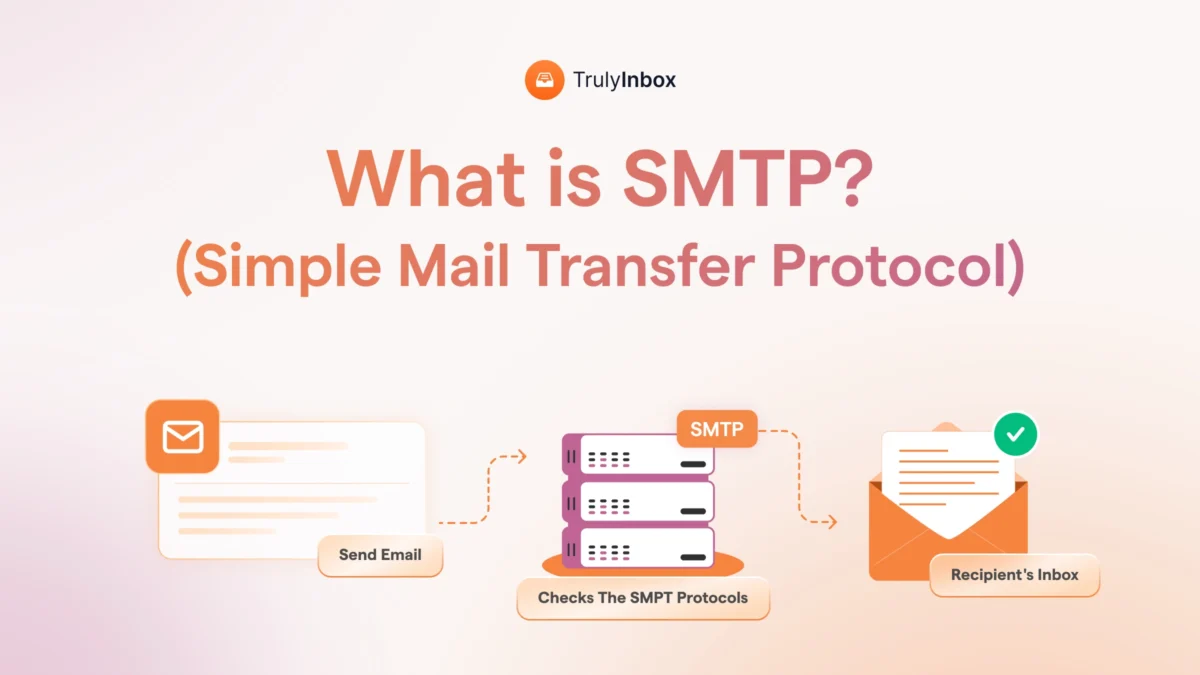
- You write an email and hit send.
- Your email client hands that message to an SMTP server.
- The SMTP server routes it to the recipient’s mail server.
- The recipient pulls the message using IMAP or POP3.
SMTP operates at the application layer and runs on top of TCP/IP. Every major email provider uses it.
Gmail, Outlook, Yahoo, Zoho, and custom domains all rely on SMTP to move outgoing mail.
Here’s what most guides miss.
SMTP isn’t just background plumbing. Every time you click “send,” you’re triggering an SMTP transaction.
Understanding that transaction gives you control over deliverability, troubleshooting, and infrastructure decisions.
SMTP has been the backbone of email for over 40 years. Despite its age, no replacement exists.
Modern email has simply layered security and authentication on top of the original protocol.
How Does SMTP Work? The Step-by-Step Sending Process
When you hit send on an email, SMTP handles the entire journey from your outbox to the recipient’s mail server. Let me walk through exactly what happens.
Here’s a concrete example. You send a cold email from your Google Workspace account to a prospect at outlook.com.
- Your email client connects to the sender’s SMTP server. In this case, that’s smtp.gmail.com.
- The SMTP client initiates a TCP connection and identifies itself. It sends a HELO or EHLO command to start the conversation.
- The client provides three things: the sender address (MAIL FROM), recipient address (RCPT TO), and the message body (DATA).
- The SMTP server checks if sender and recipient share the same domain. If yes, it delivers directly. If not, it queries DNS for the recipient’s MX (Mail Exchange) record.
- The message relays through one or more SMTP servers. Each server passes it closer to the destination until it reaches the recipient’s mail server.
- The recipient’s server stores the message. The recipient then retrieves it using IMAP or POP3.
Three key roles make this process work:
- MSA (Mail Submission Agent): Accepts your email from the client and forwards it for delivery.
- MTA (Mail Transfer Agent): Routes the email between servers until it reaches the destination.
- MDA (Mail Delivery Agent): Places the email into the recipient’s mailbox.
I’ve watched this process play out thousands of times through warm-up operations. Every step introduces a potential failure point. Understanding the flow helps you diagnose problems faster when emails don’t land.
To see exactly how your emails traverse these servers, you can inspect the routing data embedded in every message.
I wrote a detailed guide on how to read and interpret email headers that breaks this down field by field.
What Happens When the Email Can’t Be Delivered?
Sometimes SMTP can’t complete the delivery. When that happens, the recipient’s server sends back a Non-Delivery Report (NDR) to the sender’s server.
There are two types of delivery failures at the SMTP level:
- Hard bounce: The delivery fails permanently. The mailbox doesn’t exist, the domain is invalid, or the server outright rejects the message. SMTP returns a 5XX error code.
- Soft bounce: The delivery fails temporarily. The recipient’s mailbox is full, the server is busy, or there’s a connection timeout. SMTP returns a 4XX error code, and the sending server retries.
Why does this matter for senders? Bounces directly damage your sender reputation. Too many hard bounces signal to mailbox providers that you’re sending to unverified lists.
High bounce rates can trigger throttling or blocks from providers like Gmail and Microsoft.
If you’re dealing with frequent bounces, I covered the root causes and fixes in my guide on how to fix bounced emails.
SMTP Commands: The Language Servers Speak
SMTP runs on a set of text-based commands. These commands power every email transaction, even if your email client hides them completely.
Here are the key commands you should know:
- HELO / EHLO: Identifies the client to the server. EHLO is the extended version that supports modern SMTP features like authentication and encryption.
- MAIL FROM: Declares the sender’s email address.
- RCPT TO: Declares the recipient’s address. You can issue this command multiple times for multiple recipients.
- DATA: Begins the message body transfer. Everything after this command is treated as email content until a single period (.) on its own line ends it.
- QUIT: Closes the SMTP connection.
- RSET: Resets the current session without closing the connection. Useful when a sender wants to start over.
- AUTH: Handles authentication. The client provides credentials (username/password or API key) to prove it’s authorized to send.
- STARTTLS: Upgrades the connection from plain text to encrypted TLS. This is how most modern SMTP connections secure data in transit.
Here’s what a real SMTP session looks like in server logs:
- C: EHLO mail.sender.com
- S: 250-smtp.recipient.com Hello
- S: 250-STARTTLS
- S: 250 AUTH LOGIN PLAIN
- C: STARTTLS
- S: 220 Ready to start TLS
- C: AUTH LOGIN
- S: 334 VXNlcm5hbWU6
- C: dXNlckBzZW5kZXIuY29t
- S: 334 UGFzc3dvcmQ6
- C: cGFzc3dvcmQ=
- S: 235 Authentication successful
- C: MAIL FROM:<[email protected]>
- S: 250 OK
- C: RCPT TO:<[email protected]>
- S: 250 OK
- C: DATA
- S: 354 Start mail input
- C: Subject: Quick question about your Q3 roadmap
- C: Hi Alex, I noticed your team just launched…
- C: .
- S: 250 OK: queued
- C: QUIT
- S: 221 Bye
This isn’t developer trivia. When your outreach tool sends a message, this exact exchange happens under the hood.
Knowing these commands helps you read SMTP logs when deliverability issues arise.
You can analyze these server conversations using TrulyInbox’s free email header analyzer. It parses the technical data and shows you what happened at each hop.
SMTP Ports: Which One Should You Use?
SMTP uses specific network ports for communication. Choosing the right port affects whether your emails get through, especially if you’re configuring outreach tools or private infrastructure.
Here’s a breakdown of each port:
| Port | Use Case | Encryption | Status |
| 25 | Server-to-server relay | None (optional STARTTLS) | Blocked by most ISPs |
| 587 | Email submission from clients | STARTTLS (upgrades to TLS) | Modern standard |
| 465 | SMTP over SSL (SMTPS) | Implicit TLS | Deprecated, re-approved |
| 2525 | Fallback when 587/465 blocked | STARTTLS | Unofficial, widely supported |
Port 25 was the original SMTP port. It’s still used for server-to-server relay, but most ISPs block it for outbound consumer use to prevent spam. If you’ve ever tried sending from a home server and failed, this is probably why.
Port 587 is what you should use in almost every case. It’s the modern standard for email submission and requires STARTTLS encryption. Every major email provider and ESP defaults to this port.
Port 465 was originally designated for SMTPS (SMTP over implicit SSL). It was deprecated for years, then re-approved in RFC 8314. Some providers still support it, especially for legacy configurations.
Port 2525 is an unofficial fallback. It works when firewalls or ISPs block ports 587 and 465. Many third-party SMTP relays like SendGrid and Mailgun support it.
If you’ve ever configured an email account in an outreach tool and had to choose a port, now you know what that decision means.
For cold email senders using Google Workspace or Microsoft 365, port 587 with STARTTLS is the right default.
When using Gmail’s SMTP, you’ll also run into daily sending limits that cap how many messages you can push through that port.
SMTP vs IMAP vs POP3: What’s the Difference?
SMTP, IMAP, and POP3 are three distinct protocols that handle different parts of the email lifecycle. Confusing them is common, so let me clarify.
- SMTP sends and relays email. It pushes messages from your client to the server and between servers.
- IMAP retrieves email from the server. It keeps messages stored on the server and syncs them across multiple devices.
- POP3 also retrieves email, but it downloads messages to your local device. It usually deletes them from the server after download.
Here’s a side-by-side comparison:
| Protocol | Direction | Function | Keeps on Server? | Multi-Device? |
| SMTP | Outbound (push) | Sends and relays email | N/A | N/A |
| IMAP | Inbound (pull) | Retrieves and syncs email | Yes | Yes |
| POP3 | Inbound (pull) | Downloads email locally | Usually no | No |
Here’s the practical takeaway. Your outreach tool uses SMTP to send cold emails. Your inbox app uses IMAP to pull replies. You need both protocols working correctly for a functional email workflow.
- SMTP is actually used twice in every email delivery chain. It handles the client-to-server handoff and the server-to-server relay.
- IMAP and POP3 are used once, at the very end, when the recipient retrieves the message.
When you configure an email account in any sending tool, you’ll typically enter SMTP settings for outgoing mail and IMAP settings for incoming mail.
Getting either wrong means emails won’t send or replies won’t sync.
What Is an SMTP Server? (And How It Differs from a Mail Server)
People often use “SMTP server” and “mail server” interchangeably. They’re not the same thing.
A mail server is the full system that handles sending, receiving, and storing email. It includes multiple components working together.
An SMTP server is one specific component within that system. It handles only outgoing email transmission.
Here are some common SMTP servers you’ve probably used:
- Gmail: smtp.gmail.com
- Outlook: smtp-mail.outlook.com
- Zoho: smtp.zoho.com
- Custom infrastructure: Your own SMTP server running Postfix or similar software
When your email client connects to smtp.gmail.com, it’s connecting specifically to Google’s SMTP server. That server accepts your outgoing message and begins the relay process.
SMTP relay is another concept worth understanding. When your SMTP server can’t deliver directly to the recipient, it passes the message to another SMTP server.
That relay chain continues until the email reaches the recipient’s mail server.
The type of SMTP infrastructure you use affects your deliverability. Google Workspace and Microsoft 365 use shared SMTP servers.
This means your sending reputation is partially tied to other senders on the same IP pool.
I compared the implications of shared IP vs dedicated IP for email in a separate guide. If you’re scaling outreach, that distinction matters more than most senders realize.
SMTP Authentication: SPF, DKIM, and DMARC Explained
SMTP was designed in 1982 with zero built-in authentication. Anyone could forge the “From” address and impersonate any sender. That’s not a flaw that’s been fixed in the protocol itself.
Instead, three authentication layers were built on top of SMTP.
This is the most important section of this guide. No ranking competitor in the “what is SMTP” search results connects authentication to deliverability.
But for senders, this connection is everything.
SPF (Sender Policy Framework)
SPF is a DNS record that tells receiving servers which IP addresses are authorized to send email for your domain. When an email arrives, the recipient’s server checks the SPF record to verify the sending IP is legitimate.
If the IP doesn’t match, the email fails SPF and is more likely to land in spam. You can generate your SPF record using TrulyInbox’s free SPF generator.
DKIM (DomainKeys Identified Mail)
DKIM adds a cryptographic signature to each outgoing email. The recipient’s server uses the public key published in your DNS to verify two things:
- The message actually came from your domain.
- The content wasn’t altered in transit.
Without DKIM, receiving servers can’t confirm your emails are authentic. You can create your DKIM keys with TrulyInbox’s free DKIM generator.
DMARC (Domain-based Message Authentication, Reporting & Conformance)
DMARC builds on SPF and DKIM. It’s a policy that tells receiving servers what to do when authentication fails:
- none: Monitor and report, but take no action.
- quarantine: Send failing emails to spam.
- reject: Block failing emails entirely.
DMARC also provides reporting, so you can see who’s sending email using your domain.
Generate your DMARC policy with TrulyInbox’s free DMARC generator.
Why All Three Matter Together
Gmail and Microsoft now require SPF and DKIM alignment for inbox placement. DMARC enforcement is becoming the baseline expectation, not a nice-to-have.
SMTP authentication is not optional in 2026. I’ve seen domains with perfect content and clean lists land in spam because SPF wasn’t configured correctly.
If you’re sending to Gmail inboxes specifically, I broke down the full set of requirements in my Gmail deliverability guide.
Yahoo has its own enforcement standards too, which I covered in the Yahoo deliverability guide.
Common SMTP Errors and What They Mean
SMTP communicates success and failure through numeric response codes. When delivery fails, the error code tells you exactly what went wrong and whether you can fix it.
SMTP error codes follow a three-digit structure, often paired with an enhanced status code in X.X.X format:
- 2XX codes mean success.
- 4XX codes mean temporary failure. The server wants you to try again later.
- 5XX codes mean permanent failure. The message was rejected outright.
Here are the errors I see most frequently when warming up new email accounts:
| Error Code | Meaning | What to Do |
| 250 | Message accepted successfully | No action needed. This is the success response. |
| 421 | Server busy or connection limit reached | Wait and retry. Reduce your sending rate. This is classic email throttling. |
| 450 | Mailbox temporarily unavailable | Retry later. The recipient’s server may be under load. |
| 452 | Too many recipients in this session | Break your sends into smaller batches. |
| 550 | Mailbox doesn’t exist | Remove this address from your list immediately. This is a hard bounce. |
| 550 5.7.1 | Blocked by recipient’s policy | Your IP or domain is flagged. Check blacklists and authentication. |
| 553 | Address syntax error | Verify the recipient’s email format. |
| 554 | Transaction failed | Generic rejection. Often means content or reputation triggered a filter. |
The “What to Do” column is what separates useful SMTP knowledge from academic theory. Most senders see a 421 error and panic. In reality, it usually means you’re sending too fast, and slowing down fixes it.
For 550 5.7.1 errors specifically, the problem is almost always authentication or reputation. Check your SPF, DKIM, and DMARC records first. Then check if your sending IP or domain appears on any blacklists.
You can monitor how mailbox providers view your sending reputation through Google Postmaster Tools.
It shows domain reputation, spam rates, and authentication pass rates for Gmail traffic.
SMTP and Email Deliverability: Why Senders Should Care
SMTP is the mechanism. Deliverability is the outcome. How well your SMTP infrastructure is configured directly determines where your emails land.
Most guides treat SMTP as a technical concept and deliverability as a separate marketing topic. In practice, they’re inseparable.
Here are the SMTP-level factors that affect deliverability:
- Authentication setup: Missing or misconfigured SPF, DKIM, or DMARC records cause inbox providers to distrust your emails.
- Sending volume and rate: A sudden spike from a new domain triggers rate limiting or outright blocks at the SMTP level.
- Server reputation: Your SMTP server’s IP reputation determines whether receiving servers accept or reject your connections.
- Bounce handling: Continuing to send to invalid addresses after hard bounces damages your reputation with every attempt.
- Encryption: Sending without TLS encryption raises red flags with modern mailbox providers.
When you send through Google Workspace or Microsoft 365, you’re using shared SMTP servers. Your reputation is partially tied to other senders on the same IP pool.
This means a spammer on the same shared infrastructure can drag your deliverability down. It’s one reason why senders scaling beyond a few hundred emails per day consider dedicated SMTP relays or private infrastructure.
Why New Domains Need Warm-Up
SMTP servers track sending patterns over time. When a new domain sends its first batch of cold emails, mailbox providers have no history to evaluate.
A sudden spike from an unknown domain triggers suspicion. The receiving SMTP server responds with 421 errors (temporary rejection) or silently routes messages to spam.
When I set up a new domain and send 500 cold emails on day one, the SMTP server returns 421 errors within hours. That’s the server telling me to slow down because it doesn’t trust my domain yet.
Email warm-up tools solve this by simulating legitimate sending and receiving patterns at the SMTP level. They gradually build positive reputation signals before you start real outreach.
TrulyInbox works at the SMTP level to automate this process. It sends and receives warm-up emails across a network of 40,000+ real accounts, building your domain’s reputation with Gmail, Microsoft, and other providers.
For a deeper dive on building sender reputation, I covered the full framework in my guide on how to improve email reputation. I also wrote a step-by-step email warm-up strategy guide that covers ramp schedules and ESP targeting.
How to Set Up SMTP (Your Own Server vs Third-Party Service)
If you need to configure SMTP for sending, you have three main options. Each comes with trade-offs around control, cost, and deliverability.
Option 1: Use Your Email Provider’s SMTP
This is the simplest path. Gmail, Outlook, and Zoho all provide SMTP access out of the box.
- Pros: Zero setup beyond enabling SMTP access. Authentication is handled automatically.
- Cons: Shared infrastructure. Volume limits apply (Gmail caps at 500/day for free accounts, 2,000/day for Workspace).
- Best for: Senders doing fewer than 100 cold emails per day.
Option 2: Use a Third-Party SMTP Relay
Services like Amazon SES, SendGrid, Mailgun, and Postmark offer dedicated SMTP infrastructure with higher volume limits.
- Pros: Higher sending limits. Dedicated IPs available. Better deliverability analytics.
- Cons: Requires DNS configuration (SPF, DKIM, DMARC). Monthly costs scale with volume.
- Best for: Teams sending 500+ emails per day across multiple domains.
Option 3: Run Your Own SMTP Server
Tools like Postfix (Linux) and hMailServer (Windows) let you run a self-hosted SMTP server with full control.
- Pros: Complete control over IP reputation, sending rates, and configuration.
- Cons: Requires ongoing maintenance, IP reputation management, and monitoring. A misconfigured server can get blacklisted fast.
- Best for: Technical teams with dedicated DevOps resources who need maximum control.
Quick-Start: The Settings You’ll Need
Regardless of which option you choose, here’s what you’ll configure:
- SMTP server address (e.g., smtp.gmail.com)
- Port (587 for STARTTLS, 465 for implicit TLS)
- Encryption method (TLS recommended)
- Authentication credentials (username/password or API key)
Most cold email senders don’t need their own SMTP server. But they do need to understand how their provider’s SMTP works, what limits apply, and how configuration affects deliverability.
If you’re scaling to dedicated infrastructure, warm-up becomes even more critical. New IPs and domains have zero reputation. I covered the mistakes that damage reputation during this phase in my guide on email warm-up mistakes to avoid.
FAQs About SMTP
1. What Does SMTP Stand For?
SMTP stands for Simple Mail Transfer Protocol. It’s the internet standard for sending email between servers and from email clients to servers.
2. Is SMTP Used for Sending or Receiving Email?
Sending only. SMTP pushes email from the sender to the recipient’s mail server. Receiving is handled by IMAP or POP3.
3. What Port Does SMTP Use?
Port 587 is the modern standard for email submission with TLS encryption. Meanwhile, Port 465 handles implicit TLS (SMTPS). Port 25 is used for server-to-server relay but is blocked by most ISPs for consumer use.
4. Is SMTP Secure?
Not by default. SMTP was created in 1982 without encryption or authentication. Modern implementations use TLS encryption (via STARTTLS or implicit TLS) and authentication protocols (SPF, DKIM, DMARC) to secure email transmission.
5. What Is the Difference Between SMTP and IMAP?
SMTP sends email. IMAP retrieves it. SMTP pushes messages from your client to the server and between servers. IMAP pulls messages from the server to your device and keeps them synced across multiple devices.
6. Does SMTP Affect Email Deliverability?
Yes. Your SMTP server’s IP reputation, authentication setup (SPF, DKIM, DMARC), sending volume patterns, and encryption all directly impact whether your emails reach the inbox or the spam folder.