
Gmail deliverability is whether your email reaches a Gmail inbox instead of spam. Gmail decides with three things: authentication, your sending domain’s reputation and how recipients respond. Most senders fix only the first, so mail with perfect SPF, DKIM and DMARC still lands in spam.
Here is how to improve Gmail deliverability in 2026, with every rule linked to Google’s own pages.
Gmail Sender Rules in 2026: What Changed and What Applies Now
Google’s sender rules began in February 2024 and have tightened twice since. In June 2024, one-click unsubscribe became mandatory for promotional mail from bulk senders. From November 2025, Gmail has been ramping up enforcement, and messages that fail the requirements now face temporary and permanent rejections.
Here is what applies as of 23 October 2026. A bulk sender is anyone who sends about 5,000 or more messages a day to personal Gmail accounts.
| Requirement | All senders | Bulk senders | In force since |
|---|---|---|---|
| Authentication | SPF or DKIM | SPF and DKIM, plus a DMARC record (p=none is enough) | Feb 2024 |
| DMARC alignment | Not required | From: domain aligned with the SPF or DKIM domain | Feb 2024 |
| Spam rate in Postmaster Tools | Below 0.3%, ideally under 0.1% | Below 0.3%, ideally under 0.1% | Feb 2024 |
| One-click unsubscribe (RFC 8058) | Not required | Required on marketing mail, plus a visible unsubscribe link | Jun 2024 |
| Reverse DNS (PTR) and TLS | Required | Required | Feb 2024 |
| Message format | RFC 5322, no impersonating Gmail From: headers | Same | Feb 2024 |
| Enforcement | Failing mail can be rejected | Rejections, applied faster to new domains | Nov 2025 |
Two details in Google’s FAQ catch senders out:
- Bulk status is permanent. Once a domain sends about 5,000 messages to personal Gmail accounts in 24 hours, Google treats it as a bulk sender for good.
- The 48-hour unsubscribe window is a recommendation. Google suggests honouring opt-outs within 48 hours, though many guides present it as a hard rule.
Google’s published requirements are unchanged since our last update. Outlook.com has enforced a matching rule since 5 May 2025, at the same 5,000-a-day threshold, so one clean setup covers both.
See Google’s email sender guidelines and the sender guidelines FAQ.
TL;DR: What Gmail Actually Cares About
- Authentication is the entry ticket. Every sender needs SPF or DKIM, and bulk senders need SPF, DKIM and an aligned DMARC record. It proves who you are, nothing more.
- Domain reputation is the main gate. Gmail rates your sending domain on its history, and a spam rate above 0.3% sinks it, so aim for under 0.1%.
- Engagement is the ongoing test. Replies, rescues from spam and stars teach Gmail your mail is wanted, while deletes and spam reports teach it the opposite.
Why Gmail Plays by Different Rules
In practice, Gmail leans on your sending domain’s reputation more than on the IP your mail leaves from. Most senders share IPs through Workspace or an email platform, so the IP says little about any one sender, while the domain is yours alone. That’s why a new domain on a clean shared IP can still land in spam.
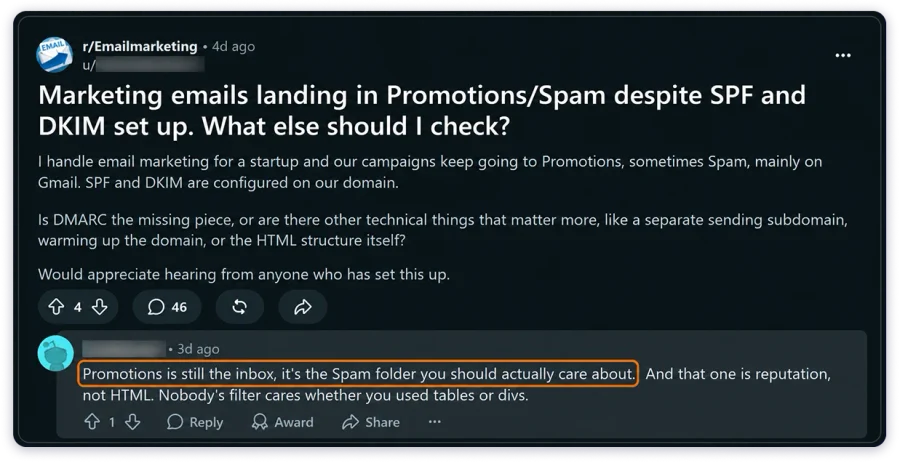
Gmail also filters per recipient, so one campaign can reach one person’s Primary tab, another’s Promotions tab and a third person’s spam folder. Promotions is still the inbox; the spam folder is the one to worry about (r/Emailmarketing, Oct 2026).
For the basics behind all this, see our guide to email deliverability.
Sending to Gmail vs Sending From Gmail: Two Different Jobs
Most deliverability guides treat Gmail as one problem, but it is really three situations. The rules, the data you can see and the fixes differ for each. Sending to personal Gmail addresses, sending to companies on Google Workspace and sending from your own Gmail or Workspace mailboxes each need their own checklist.
| Your situation | Google’s sender rules apply? | Postmaster Tools shows data? | Where to focus |
|---|---|---|---|
| Sending to personal Gmail (@gmail.com) | Yes | Yes | Authentication, spam rate, domain reputation |
| Sending to Google Workspace business inboxes | No, per Google’s own FAQ | No | Authentication, replies, seed tests |
| Sending from Gmail or Workspace mailboxes | Yes, for any recipients on personal Gmail | Only for mail to personal Gmail | Sending limits and warm-up, on top of the above |
The middle row is the one most B2B senders miss, because cold email to companies often lands in Workspace inboxes. Google’s FAQ states that its sender guidelines “don’t apply to messages sent to Google Workspace accounts”, and Postmaster Tools covers personal Gmail only. Workspace mail is still filtered by Google, but with no dashboard, so track replies and seed-test inboxes you control.
Sending from Gmail or Workspace adds Google’s sending limits. A personal Gmail account can send about 500 emails a day, and a paid Workspace user 2,000 (Google’s Workspace limits). Hit one and the account can’t send for up to 24 hours. That’s why cold senders spread volume across several warmed mailboxes, as covered in how email warm-up works.
The Authentication Baseline: SPF, DKIM and DMARC
Authentication proves that mail claiming to come from your domain really does. SPF lists the servers allowed to send for you, and DKIM signs each message so any change shows. DMARC tells receivers what to do when checks fail, and reports back to you.
Passing all three is only the price of entry, and it says nothing about whether recipients want your mail. Alignment is where setups quietly fail, since SPF can pass for your email platform’s domain while your own From: domain stays unaligned.
Two points vendors often get wrong. Bulk senders need a DMARC record, but Google’s guidelines say the policy can be set to none, so p=none meets the rule. Google’s line that Gmail “will begin using a DMARC quarantine enforcement policy” concerns gmail.com’s own record. It stops people spoofing @gmail.com addresses and doesn’t require you to change your policy.
To set the records up, follow our guide to set up SPF, DKIM and DMARC, then generate your DMARC record with our free tool. Start DMARC at p=none with a reporting address, read the reports for a few weeks, then tighten the policy once every legitimate sender passes.
Domain Reputation: The Biggest Factor in Gmail Inbox Placement
Domain reputation is Gmail’s judgement of your sending domain, built from its sending history. Google shows it in Google Postmaster Tools as one of four ratings: High, Medium, Low or Bad. High means mail from the domain is rarely marked as spam, while Bad means it is almost always marked as spam or rejected.
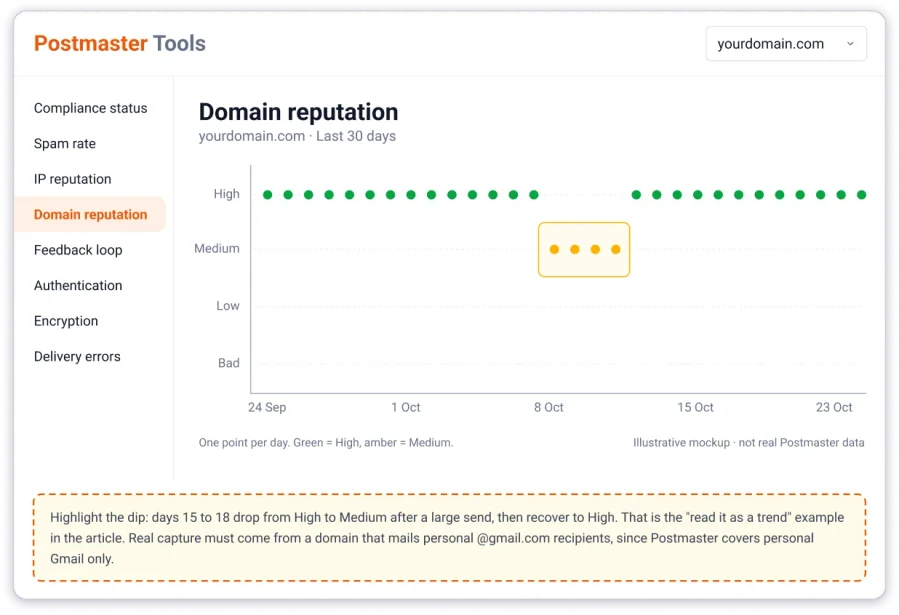
Read the chart as a trend rather than a score. A dip from High to Medium after a big send often recovers if the following weeks are clean. Low, Bad or a slide lasting days means Gmail is filtering most of your mail, so use the recovery steps below.
Spam complaints damage the rating fastest: 0.1% is one complaint per 1,000 messages, and 0.3% is three. Bounces matter too, but Google publishes no bounce threshold, and the often-quoted 2% is an industry baseline, not a Google rule.
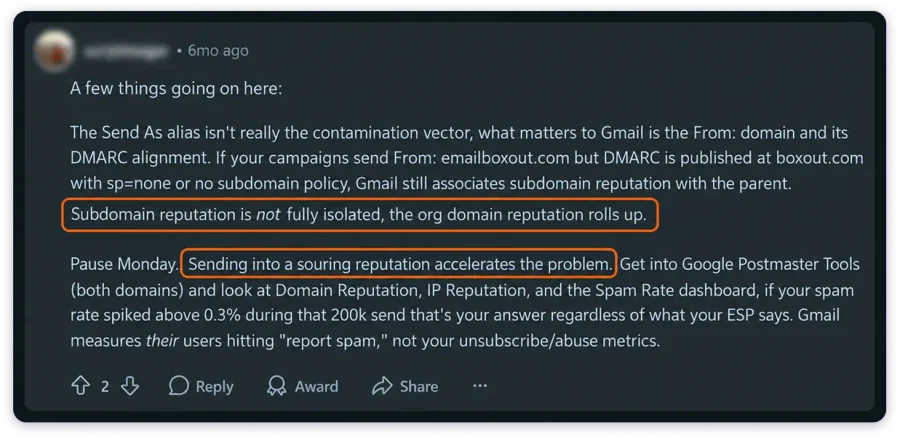
Two more things shape the rating. Subdomains don’t fully shield your main domain, because their reputation rolls up to the parent (r/Emailmarketing, May 2026). Postmaster also has gaps, covering personal Gmail only and staying blank on low-volume days.
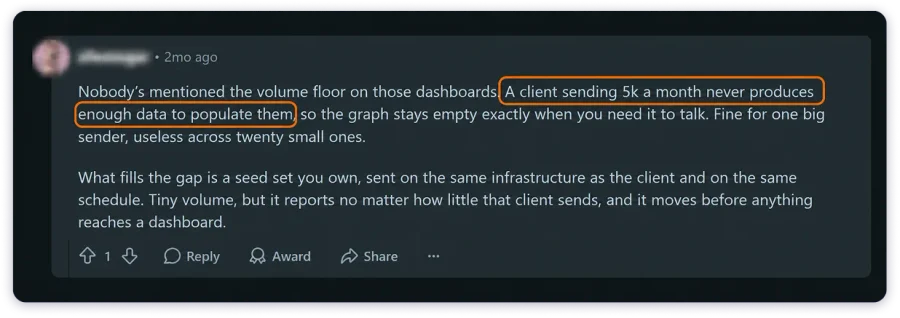
That blank dashboard hits smaller senders hardest: a client sending 5,000 a month may never generate enough data to fill the charts (r/emaildeliverability, Aug 2026). For a fuller playbook on lifting a weak sender reputation, see how to improve email reputation.
Email Warm-Up for Gmail and Google Workspace
A new domain or mailbox has no history with Gmail, so its first emails are watched closely. Gmail lets early mail through to see how recipients react, and a sudden jump to full volume from an unknown sender looks like a spammer’s pattern. Warm-up builds that history gradually, with low volumes and real engagement, before your campaigns depend on it.
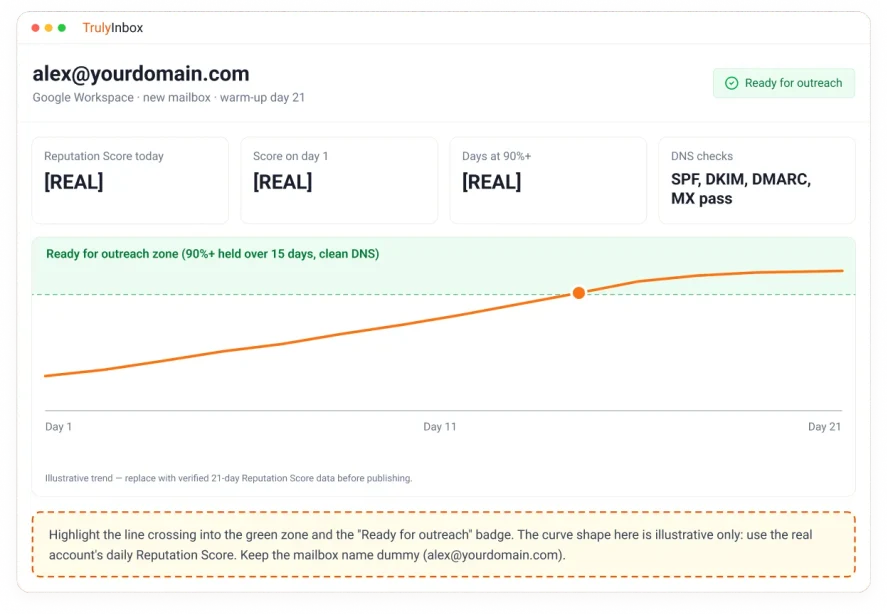
We make TrulyInbox, an email warm-up tool, so weigh our view with that in mind. Expect a noticeable improvement in 2 to 3 weeks. A full warm-up cycle takes 4 to 6 weeks, depending on the domain and its starting reputation. Keep warm-up running after campaigns start, because stopping it removes steady positive signals just as your cold volume climbs.
A Conservative Warm-Up Ramp for New Mailboxes
A cautious general schedule for a new mailbox, not any tool’s internal algorithm:
| Week | Emails a day per mailbox | Move on when |
|---|---|---|
| 1 | 5 to 10 | No bounces and no spam placement in seed tests |
| 2 | 10 to 20 | Replies are coming in and the spam rate stays near zero |
| 3 | 20 to 30 | Placement holds steady across Gmail and Workspace seeds |
| 4 onward | Up to 30 to 40, then hold | Every metric stays clean for a full week |
If any metric slips, drop back a row and hold for a week before climbing again. Pushing through a slip is how a nearly ready domain ends up burned.
When You Need Warm-Up, and When You Don’t
Warm up any new domain or mailbox, any domain idle for a month or more, and any domain recovering from spam. Skip it only when adding one mailbox to a domain with a steady, healthy sending history.
Gmail’s Engagement Signals: What Happens After Your Email Arrives
Once your mail arrives, Gmail watches what each recipient does with it and adjusts where your next message lands. Replies, moving a message out of spam, starring it and adding you to contacts all count in your favour. Deleting without reading, ignoring mail for months and reporting spam count against you, and a spam report is the strongest negative.
That is why engagement can’t be gamed for long. It comes from sending relevant mail to people likely to want it, and from removing those who stop responding. A Klaviyo team member on Reddit described seeing a Promotions-to-Spam slide “get fixed just by suppressing cold segments for a few weeks” (r/Emailmarketing, Oct 2026).
Measure engagement by replies, not opens. Open tracking relies on a hidden image that Gmail may block and some mail apps pre-load, so open rates drift from reality both ways. As one commenter in the same thread put it, “The highest signal to gmail that your emails should be getting delivered is replies, then clicks.”
Content and Formatting Mistakes That Trigger Gmail’s Spam Filter
Content matters less than reputation, but it still tips borderline mail into spam. Trigger words like FREE matter far less than they used to. What hurts is anything that looks mass-produced or hides where its links go.
- Oversized HTML. Gmail clips messages once their HTML passes about 102KB and shows a “View entire message” link. Google doesn’t document the limit, but email platforms do, and a clipped message can hide your unsubscribe link.
- Link shorteners and risky domains. Shortened URLs and links to blocklisted or brand-new domains are common spam signals. Keep links few, and point them at your own established domain.
- Busy signatures. Links and images in a signature count like links in the body. One cold emailer reported, “we tested this, removed the link completely and gmail placement improved a bit” (r/emaildeliverability, Mar 2026).
- Identical templates across mailboxes. Sending the same body from several mailboxes looks like one campaign to a filter. One Reddit adviser put it simply: “Vary the body, not only the subject.”
- Misleading formatting. Fake “Re:” or “Fwd:” prefixes, hidden text and all-caps subject lines read as deception, and they draw spam reports.
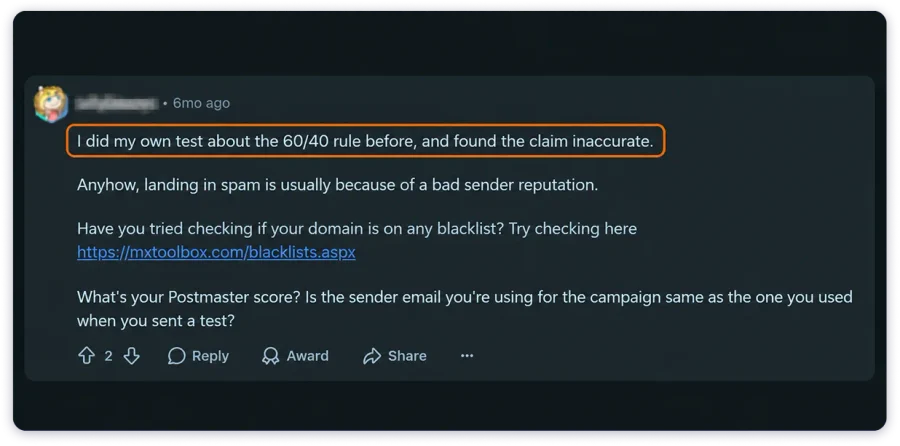
One rule from older guides doesn’t hold up: the 60/40 text-to-image ratio was never a Gmail requirement, and testers report it makes little difference (r/Emailmarketing, May 2026). Reputation and engagement decide placement far more than the image ratio.
How to Diagnose Gmail Deliverability Issues, Step by Step
When mail lands in the wrong place, work from the outside in. Confirm where it lands, then rule out authentication, reputation, blacklists, content and engagement, in that order.
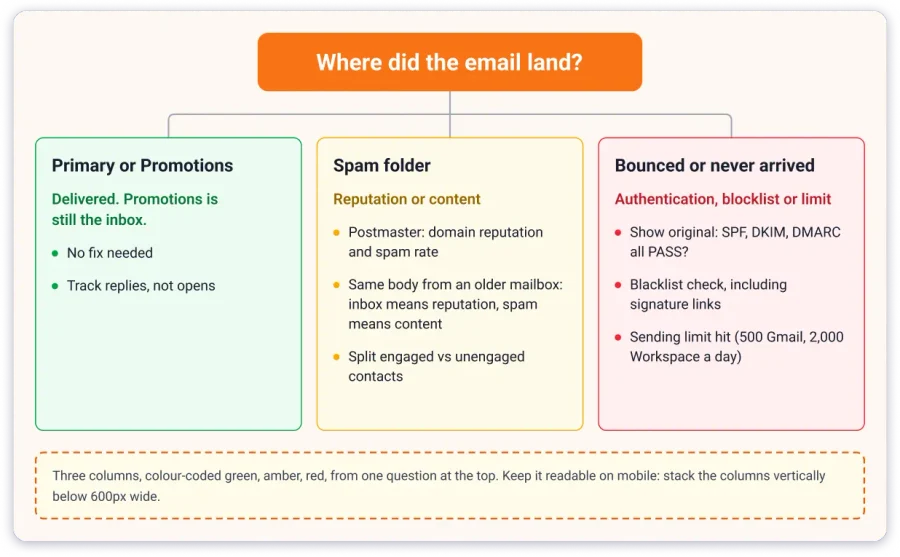
- Find out where the mail actually lands. Send the same message to a few Gmail and Workspace inboxes you control. Promotions is fine; spam points to reputation or content, and a bounce points to authentication, blocklists or a sending limit.
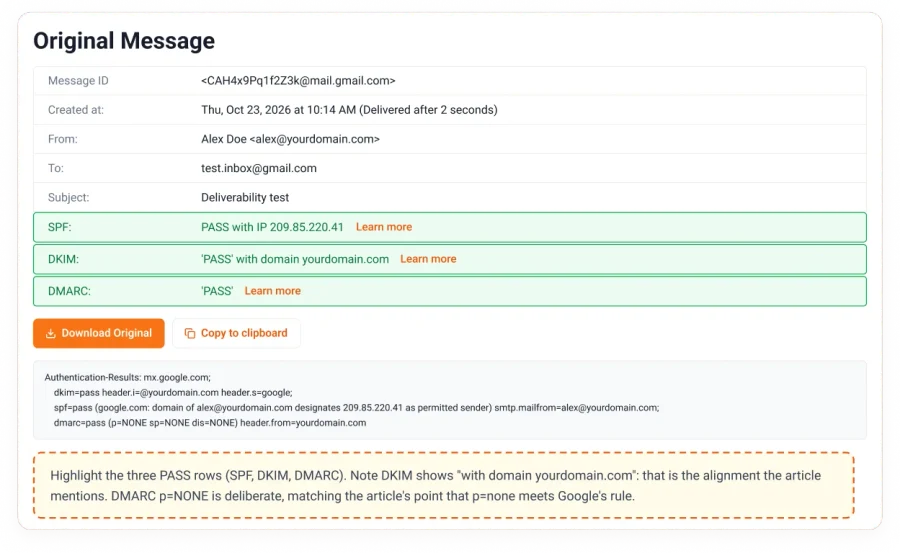
- Read the headers. In Gmail, open the message, choose More, then Show original, and check that SPF, DKIM and DMARC all show PASS for your domain.
- Check your reputation and spam rate. If you send to personal Gmail, open Postmaster Tools and look for a Low or Bad rating, or a spam rate climbing toward 0.3%.
- Check blacklists. Check your domain against email blacklists, including any domain linked in your signature.
- Review your sending pattern. Look for a volume spike, a newly imported segment or a new domain sent at full volume just before the problem began.
- Isolate the content. Send the same body from an older, healthy mailbox to the same test inboxes. If it lands in the inbox, the problem is your domain’s reputation; if it still goes to spam, it is the message.
- Split by engagement. Send to recently engaged contacts and to everyone else separately. If only the second group lands in spam, the cause is your list, not your HTML.
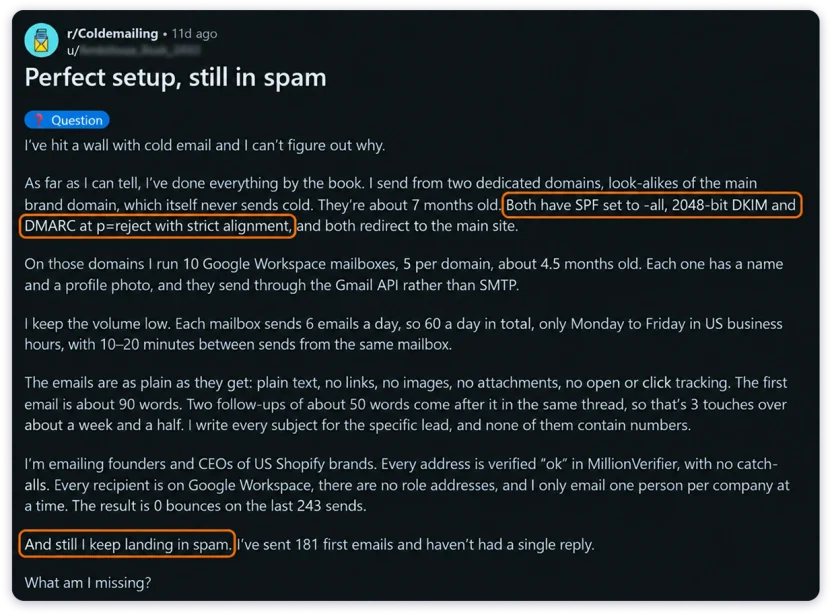
Step 6 often settles it. One cold emailer with a textbook setup ran a 28-inbox seed test: “Google (Gmail + Workspace): 14/14 spam every time”, while Office 365 delivered all 8 (r/Coldemailing, Oct 2026). That points to domain reputation at Google, not the copy.
Read your headers to see where Gmail put your mail, and why. Open the free Header Analyzer.
How to Recover a Damaged Gmail Reputation
If the diagnosis points to reputation, slow down before you fix anything else. Cut daily volume sharply, send only to recently engaged contacts, and stop mailing anyone who hasn’t replied or clicked in 90 days. Then rebuild the domain with warm-up, and expect the full 4 to 6 weeks for a domain starting from a damaged reputation.
Check Postmaster Tools weekly if you send to personal Gmail, and raise volume only once the rating is back to Medium or High. As one commenter warned, “Sending into a souring reputation accelerates the problem” (r/Emailmarketing, May 2026).
Want a step-by-step list to work through? Run the free deliverability checklist.
Tools to Monitor Your Gmail Deliverability
You don’t need a large stack. Google’s free tools cover personal Gmail, two independent checkers cover DNS, blacklists and content, and a warm-up tool keeps reputation building.
For a wider comparison, see our guide to email deliverability tools.
| Tool | What it checks | Best for | Cost |
|---|---|---|---|
| Google Postmaster Tools | Domain and IP reputation, spam rate, authentication, delivery errors and compliance status | Senders mailing personal Gmail at volume | Free |
| Google Admin Toolbox | DNS records (CheckMX) and message headers (Messageheader) | Checking DNS and reading headers | Free |
| MXToolbox | Blacklists and DNS records | Blacklist checks | Free, with paid monitoring |
| Mail-tester | Spam score for one test message | Content checks before a send | Free for a few tests a day |
| TrulyInbox | Warm-up, a daily Reputation Score, DNS checks and 44 domain and 38 IP blacklists | Building and holding reputation across many inboxes | Free plan, paid from $22 a month (annual) |
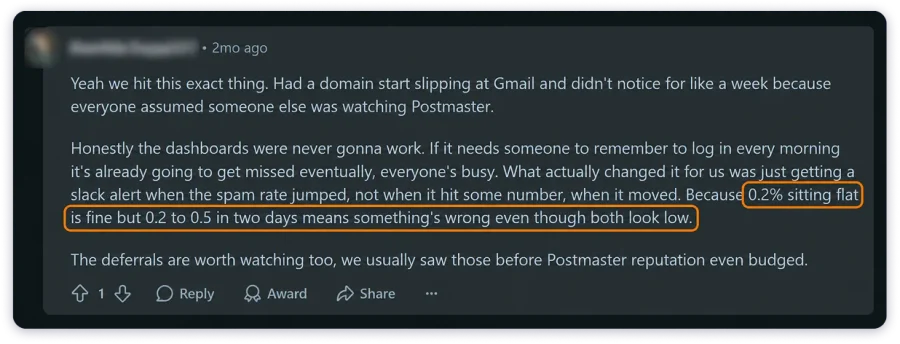
None of Google’s tools reports on mail sent to Workspace business inboxes. For those, seed tests and your own reply and bounce data are the honest measure. Watch movement rather than thresholds: a spam rate jumping from 0.2% to 0.5% in two days is a warning, even though both look low (r/emaildeliverability, Aug 2026).
See what TrulyInbox does for warm-up and reputation monitoring, or start free with one inbox and 10 warm-up emails a day.
Frequently Asked Questions
Why Are My Emails Going to Spam in Gmail Even With SPF and DKIM?
Authentication only proves the mail really comes from you. Gmail also weighs your domain’s reputation and recipient engagement, so a new, unwarmed or complaint-heavy domain can still land in spam.
What Spam Complaint Rate Does Gmail Allow?
Keep the user-reported spam rate in Postmaster Tools below 0.1%, and never let it reach 0.3%. Above 0.3%, bulk senders lose delivery mitigation until the rate stays under it for 7 days in a row.
Does Gmail Care More About Domain or IP Reputation?
Postmaster Tools reports both, but the domain usually carries more weight. Most senders share IPs, so the IP says little about you, while the domain’s history is yours alone.
How Long Does It Take to Warm Up a New Domain for Gmail?
Expect a noticeable improvement in 2 to 3 weeks and a full cycle of 4 to 6 weeks, depending on the domain. Start at 5 to 10 emails a day per mailbox and raise volume only while metrics stay clean.
Does Email Warm-Up Improve Gmail Deliverability?
Yes, for new, idle and recovering domains, because it builds the sending history and engagement Gmail looks for. It can’t fix broken authentication or a bad list, so fix those first.
How Do I Check My Gmail Deliverability?
Send a test to Gmail and Workspace inboxes you control and see whether it lands in Primary, Promotions or spam. Then check Show original for SPF, DKIM and DMARC passes.