
Microsoft 365 sends your mail. Proving it really came from you takes three DNS records: SPF, DKIM and DMARC. Gmail, Yahoo and Outlook.com now require all three from anyone sending at volume.
This guide sets them up through the portal, in order, without breaking the other tools that send as your domain.
TL;DR: Quick Version
SPF lists who may send as your domain. DKIM signs each message. DMARC tells receivers what to do when both checks fail.
- Publish one SPF record with
include:spf.protection.outlook.com.- Enable DKIM in the Microsoft Defender portal and add the two CNAME records it gives you.
- Add a DMARC record at
_dmarc, starting atp=none.- Verify that a test message shows
spf=pass,dkim=passanddmarc=pass.
What You Need Before You Start
- Admin access: a Global Administrator or Security Administrator role, to reach the Defender portal.
- DNS access: wherever your domain’s DNS is managed, such as GoDaddy, Namecheap, Cloudflare or Microsoft. The records go there, not inside Microsoft 365.
- A list of every service that sends as your domain. Your CRM, outreach tool, newsletter platform and help desk all count. Step 1 depends on it.
Plan on 20 to 30 minutes, plus time for DNS to update.
Setting up a provider other than Microsoft? Use the general guide covering all providers.
Set Up SPF, DKIM and DMARC on Microsoft 365 (Office 365)
Step 1. Set Up SPF for Microsoft 365
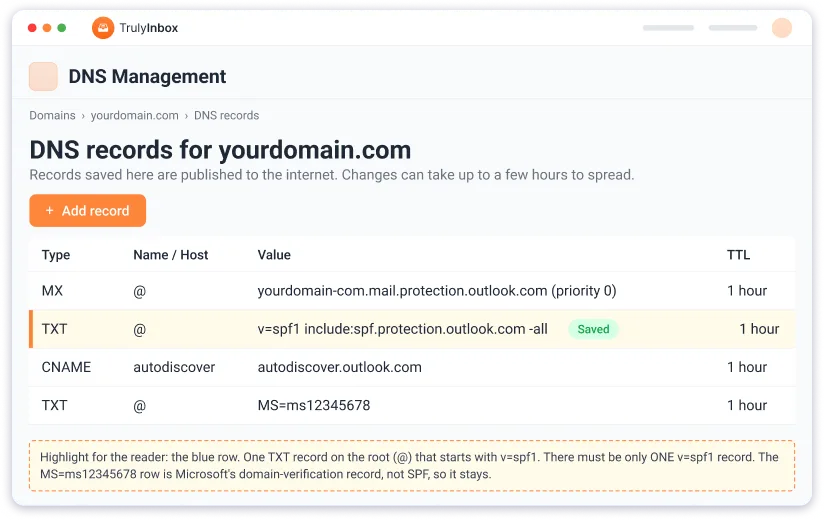
If Microsoft 365 is the only service sending as your domain, add this record at your DNS host:
| Type | Host | Value | TTL |
|---|---|---|---|
| TXT | @ (root domain) | v=spf1 include:spf.protection.outlook.com -all | 1 hour |
One domain gets one SPF record. If a record starting v=spf1 already exists, add Microsoft’s include to it. Two records make SPF fail with permerror, so look for a leftover from an old host or email tool first.
-all or ~all? -all tells receivers to reject mail from servers you haven’t listed, and it’s what Microsoft recommends. Use ~all, which accepts that mail but marks it suspect, only while you’re still adding senders.
Build your SPF record with the free TrulyInbox SPF Generator and put Microsoft 365 plus every other sender into one valid line.
Step 2. Enable DKIM in the Defender Portal
Until you finish this step, Microsoft 365 doesn’t DKIM-sign mail from your own domain at all. Only your onmicrosoft.com address is signed automatically.
How to enable DKIM in Office 365:
- Sign in to the Microsoft Defender portal at
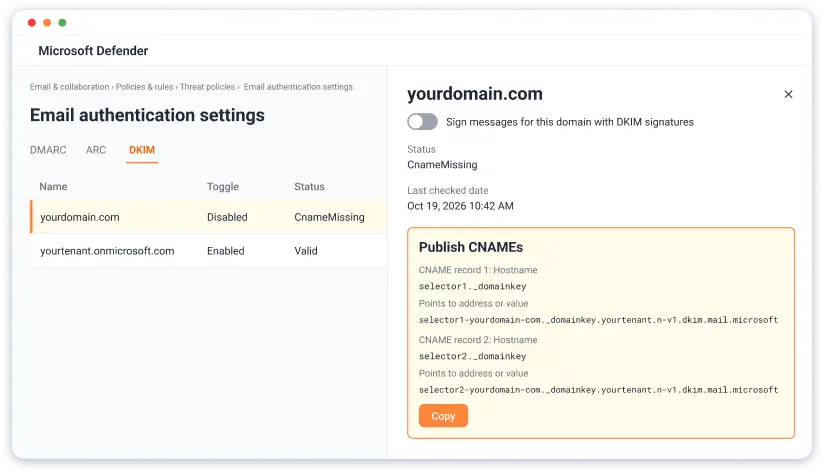
security.microsoft.com.- Go to Email & collaboration > Policies & rules > Threat policies > Email authentication settings, then open the DKIM tab.
- Slide your domain’s Toggle to Enabled.
- A Client error dialog appears. That’s expected: it’s how the portal hands you the CNAME values. Select OK.
- Click the domain row and copy both records under Publish CNAMEs.
- Add them as CNAME records at your DNS host.
- Wait a few minutes, sometimes longer, then turn on Sign messages for this domain with DKIM signatures.
When it works, the status reads Signing DKIM signatures for this domain.
| Type | Host | Points to (domains added since May 2025) | Points to (older domains) |
|---|---|---|---|
| CNAME | selector1._domainkey | selector1-yourdomain-com._domainkey.yourtenant.x-v1.dkim.mail.microsoft | selector1-yourdomain-com._domainkey.yourtenant.onmicrosoft.com |
| CNAME | selector2._domainkey | selector2-yourdomain-com._domainkey.yourtenant.x-v1.dkim.mail.microsoft | selector2-yourdomain-com._domainkey.yourtenant.onmicrosoft.com |
Copy your exact values from the portal. Microsoft changed the format in May 2025, and older guides show only the onmicrosoft.com version. The x is a letter Microsoft assigns.
If the toggle never turns on, check two things:
- The hostname is short. Enter only
selector1._domainkey. Many DNS hosts add your domain automatically, so typing it createsselector1._domainkey.yourdomain.com.yourdomain.com. - Both records are CNAMEs, not TXT records.
Prefer PowerShell? Microsoft Learn has the PowerShell steps.
Setting up DKIM for a sender outside Microsoft 365? Create the key record with the free TrulyInbox DKIM record generator.
Step 3. Add DMARC in Monitoring Mode
| Type | Host | Value |
|---|---|---|
| TXT | _dmarc | v=DMARC1; p=none; rua=mailto:dmarc@yourdomain.com |
p=none doesn’t change delivery. It turns on daily reports that show every service sending as your domain and whether it passed. You fix the gaps before you enforce anything.
Point rua at a shared mailbox rather than someone’s inbox, since reports arrive daily as compressed XML files.
Do you need DMARC at all? Gmail and Yahoo have required it since February 2024 from anyone sending more than 5,000 messages a day. Outlook.com followed on 5 May 2025.
Move to p=quarantine, then p=reject, once your reports show every legitimate sender passing. The no DMARC record found error and enforcement ladder guide covers that climb.
Generate your DMARC record with the free TrulyInbox DMARC Generator, then paste it straight into your DNS host.
Step 4. Verify All Three Are Passing
A checker confirms a record exists. Only a real message confirms receivers accept it.
- Send a message from your Microsoft 365 mailbox to an outside address, such as a personal Gmail or Outlook.com account.
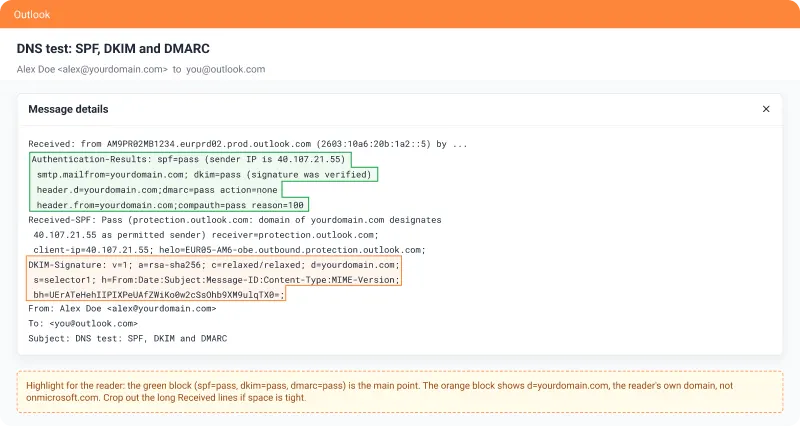
- Open its headers. In Outlook on the web or the new Outlook, select More actions > View > View message details. In classic Outlook, open the message in its own window and go to File > Properties.
- Find the Authentication-Results line.
Authentication-Results: spf=pass ... dkim=pass header.d=yourdomain.com ... dmarc=passheader.d should show your domain. If it shows onmicrosoft.com, DKIM from Step 2 isn’t live yet.
One message tests one path. Your DMARC reports cover every server sending as your domain, so check them over the next few days. The Defender portal won’t help here, because its spoofing reports cover incoming mail.
Allow a few hours for DNS to update before you test.
Headers are hard to read raw. Paste yours into the free TrulyInbox Header Analyzer and read your headers as a plain pass or fail.
Step 5. Troubleshooting
| Symptom | Likely cause | Fix |
|---|---|---|
DKIM toggle won’t turn on, status stays CnameMissing | CNAMEs missing or still propagating, added as TXT, hostname doubled, or selector2 left out | Re-enter both as CNAMEs with the short hostname, wait, then try again |
SPF returns permerror | Two SPF records on the domain, or more than 10 DNS lookups | Merge into one record. For lookups, see Step 6 |
| DMARC reports never arrive | The rua mailbox doesn’t exist, rejects outside mail, or sits on another domain that hasn’t authorized it | Confirm the mailbox accepts external mail. A different domain needs a yourdomain.com._report._dmarc TXT record |
| DKIM fails at receivers after you enabled it | CNAME targets copied from an old guide, so they point at the wrong format or tenant | Replace them with the exact values under Publish CNAMEs |
| One tool’s mail lands in spam after setup | -all with that tool missing from SPF | Add the tool’s include, or use ~all until your sender list is complete |
Step 6. SPF Conflicts: Microsoft 365 Plus Third-Party Senders
Most domains also send from a CRM, outreach tool or newsletter platform. Every one that sends from its own servers has to fit into your single SPF record. That’s where setups break.
SPF allows 10 DNS lookups. Each include: costs at least one, more if it chains to other records. Go over 10 and SPF fails with permerror for your whole domain, Microsoft 365 mail included.
What each sender needs, with lookups checked in live DNS on 19 October 2026:
| Sender | What to add to SPF | DNS lookups |
|---|---|---|
| Microsoft 365 | include:spf.protection.outlook.com | 1 |
| Google Workspace | include:_spf.google.com | 1 |
| HubSpot | Your account’s own include, such as include:123456.spf03.hubspotemail.net. Copy it from Settings > Content > Domains & URLs > Email Sending | Check yours |
| Saleshandy | Nothing, when your Microsoft 365 mailbox is connected directly. It sends through Microsoft | 0 |
| Mailchimp | No SPF include. Mailchimp authenticates with two DKIM CNAMEs and a DMARC record | 0 |
| SendGrid | include:sendgrid.net | 2 |
| Salesforce | include:_spf.salesforce.com | 2 |
| Mailgun | include:mailgun.org | 5 |
Vendors change these, so confirm each against the provider’s current docs before you publish. All of them go in one v=spf1 line, separated by spaces, with one -all at the end.
Microsoft’s include is the cheap one. Your budget goes on everything you stack after it, and it can rise when a vendor edits its own record.
Over the limit? Fix it in this order:
- Remove includes you no longer use. Old trials and retired tools are the usual waste.
- Move bulk senders to a subdomain, such as
news.yourdomain.com. Microsoft recommends this for services you don’t control, and each subdomain gets its own 10-lookup budget. - Flatten what’s left. Flattening replaces an include with the IP addresses behind it, which cost no lookups. You must update them when the vendor changes IPs, and never flatten Microsoft’s include, because its addresses change often.
Build your SPF record with the free TrulyInbox SPF Generator to assemble every include in one line and count its lookups.
Where SPF, DKIM and DMARC Stop: Reputation and Placement
Passing all three proves your mail is from you, not that anyone wants it.
Placement depends on your domain’s sending history, how recipients engage, your list quality and how fast your volume grows. A new domain with perfect records still starts with no reputation.
Microsoft recommends sending bulk and third-party mail from a subdomain, so problems there don’t drag down your main domain. Keep cold outreach off the domain your team uses every day.
Running your own mail server as well? Check its PTR record and reverse DNS. Then warm up your Microsoft 365 mailboxes and domains before you send at volume.
Frequently Asked Questions
Does Microsoft 365 Use DKIM?
Yes, but not for your own domain until you turn it on. Only your onmicrosoft.com address is signed by default.
How Do I Activate DKIM in Office 365?
Try to enable your domain on the DKIM tab in the Defender portal. Add the two CNAME records it shows at your DNS host, then turn on signing.
What Are SPF, DKIM and DMARC in Office 365?
SPF lists the servers allowed to send as your domain. DKIM signs each message. DMARC tells receivers what to do when both fail, and sends you reports.
Do I Need DMARC on Microsoft 365?
Yes. Gmail, Yahoo and Outlook.com require it from anyone sending more than 5,000 messages a day. Start at p=none, which doesn’t affect delivery.
Can I Use SPF With Microsoft 365 and Another Email Tool?
Yes. Add each tool’s include to your one SPF record and stay within 10 DNS lookups.