
To send email through Gmail from another app, use the SMTP server smtp.gmail.com on port 587 with STARTTLS. Sign in with your full Gmail address and a 16-character app password, not your normal Google password. The table below has every value your settings form will ask for.
Getting connected is the easy half. A working login doesn’t mean your email lands in the inbox, and this guide covers both. If you need a refresher on what SMTP is, start there.
Gmail SMTP Server Settings
These SMTP settings are the same for every personal Gmail and Google Workspace account. Setting up a printer or a whole Workspace organisation? Check Google’s three SMTP routes first.
| Setting | Value |
|---|---|
| SMTP server (outgoing mail) | smtp.gmail.com |
| Port with STARTTLS (recommended) | 587 |
| Port with SSL/TLS | 465 |
| Requires authentication | Yes |
| Username | Your full Gmail or Google Workspace address |
| Password | A 16-character app password, not your Google password |
| IMAP server (incoming mail) | imap.gmail.com, port 993, SSL/TLS |
| POP server (incoming mail) | pop.gmail.com, port 995, SSL/TLS |
| Sending limits | Depend on your account type; see Gmail’s sending limits |
Settings and screenshots last checked 17 November 2026, against Google’s own documentation.
Which Gmail SMTP Port Should You Use: 465 or 587?
Both ports encrypt your connection, but 587 is the one most mail clients and apps expect. The difference is timing: 587 opens the connection and then upgrades it with STARTTLS, while 465 is encrypted from the start (implicit SSL/TLS).
Most settings forms call STARTTLS “TLS” and call implicit SSL/TLS “SSL”. So pick 587 with TLS (or STARTTLS) or 465 with SSL, and never mix the two pairs. Google also lists port 25, but many internet providers and cloud hosts block it.
Google Has Three SMTP Routes: Pick Yours First
There are three ways to send email over SMTP, and their settings aren’t interchangeable. Pasting relay values into a personal account’s form is a common reason setup fails.
| Route | Server and port | How it signs in | Who it’s for |
|---|---|---|---|
| Gmail SMTP server | smtp.gmail.com, 587 or 465 | Your address and an app password, or “Sign in with Google” | One mailbox in a mail client, website, app or device |
| SMTP relay | smtp-relay.gmail.com, 25, 465 or 587 | Your organisation’s IP address, set up by a Workspace admin | Google Workspace organisations sending from apps or devices |
| Restricted Gmail SMTP server | aspmx.l.google.com, 25 | None; encryption isn’t required | Devices that can’t sign in, sending only to Gmail and Workspace users |
Scroll the table sideways to see every column.
The last two routes need a Google Workspace admin. Google recommends the relay for an organisation’s devices and apps, and it may need a static IP address. The restricted server needs no sign-in, but it only sends to Gmail and Workspace users. The device’s IP must also be on an admin allowlist and covered by your SPF record.
Quick rule: Setting up one mailbox? Use the Gmail SMTP server. For a printer or scanner, try smtp.gmail.com on port 465 with SSL and an app password. If the device can’t do that, ask a Workspace admin for the relay.
How to Set Up a Gmail App Password for SMTP
If your app offers “Sign in with Google”, use that, since Google says app passwords “aren’t recommended and are unnecessary in most cases”. Otherwise, create an app password: a 16-character code that lets one app sign in to your account. 2-Step Verification has to be on first.
Step 1: Turn On 2-Step Verification
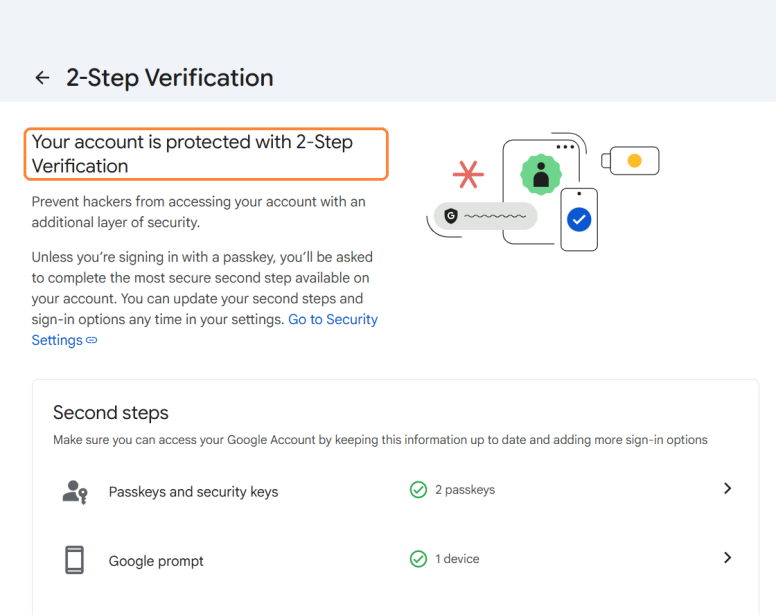
Open your Google Account’s Security page and find 2-Step Verification under “How you sign in to Google”. If it already says On, skip to Step 2.
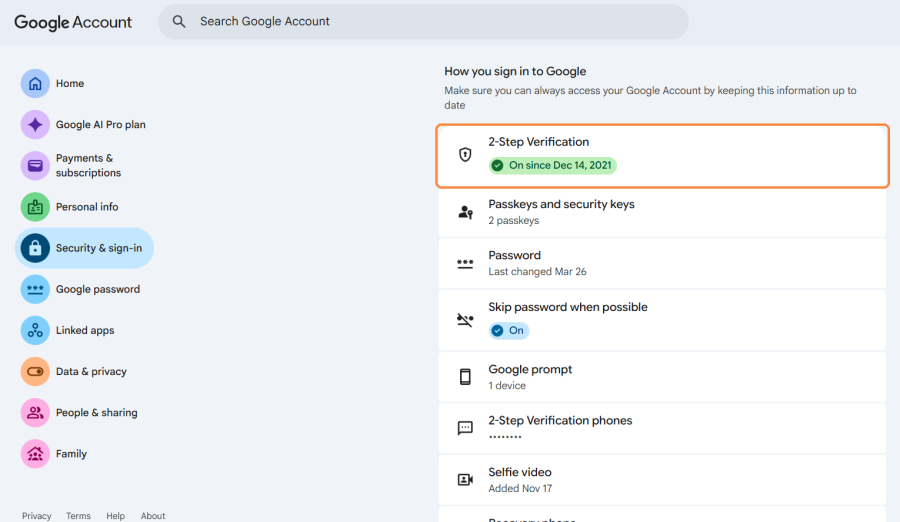
If it’s off, click it and follow the prompts to add a second step, such as a phone. Once it’s on, the page confirms your account is protected.
Step 2: Create the App Password
Go to the App passwords page in your Google Account. You may be asked to sign in again.
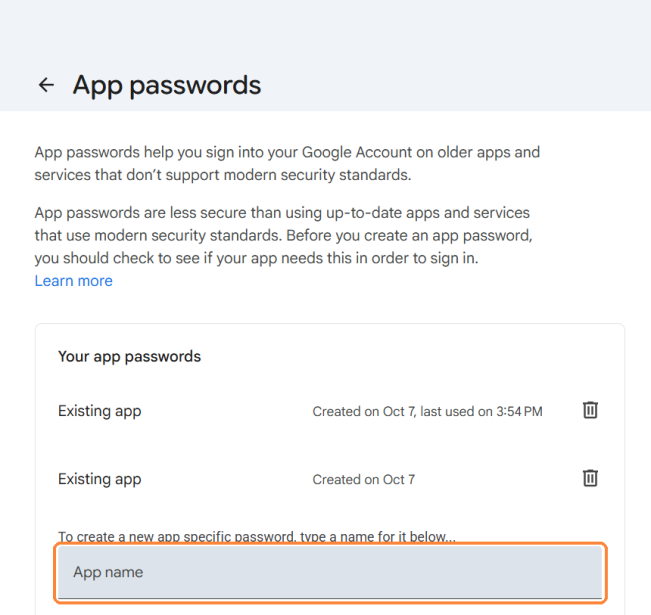
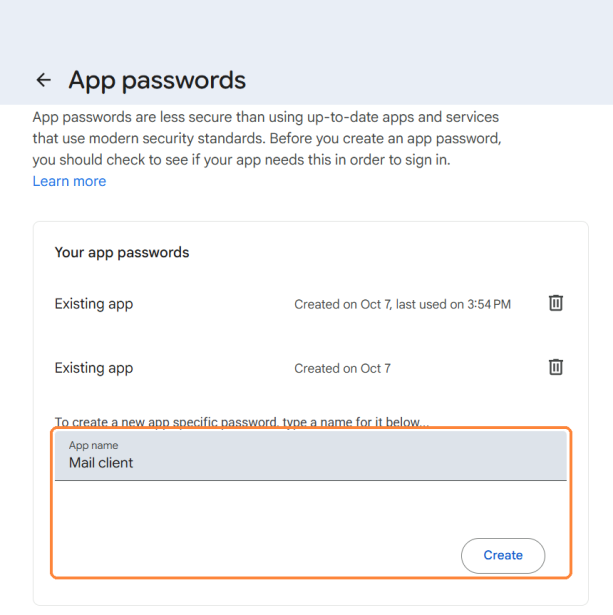
Type a name you’ll recognise, such as “Outlook laptop” or “Website contact form”, and click Create. A clear name lets you find and remove the right password later.
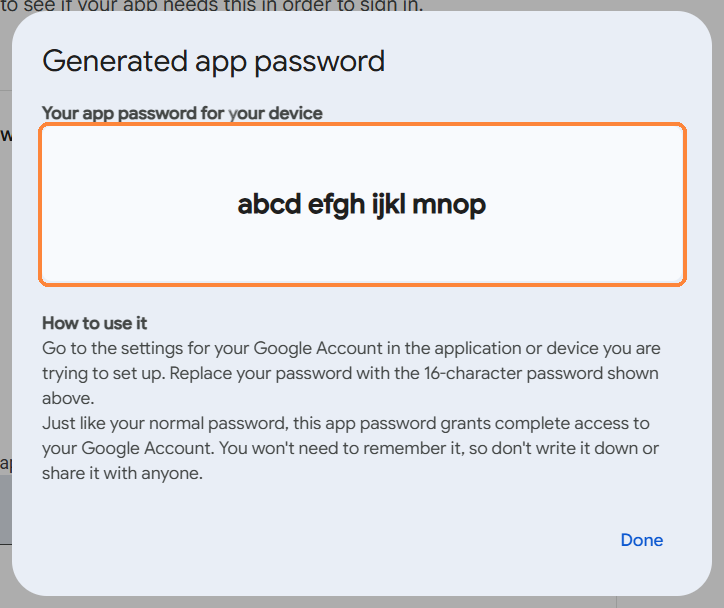
Google shows the 16-character password once. Copy it into your app’s password field without the spaces. A pasted space is a common, silent cause of failed logins.
When App Passwords Aren’t Available
If you can’t find the App passwords option, Google lists these reasons:
- 2-Step Verification is off: Turn it on first, as in Step 1.
- Security keys only: Your 2-Step Verification is set up only for security keys.
- Work or school account: You’re signed in to an organisation account, where the admin controls this.
- Advanced Protection: Your account is enrolled in Google’s Advanced Protection Program.
Google also revokes all your app passwords when you change your Google Account password. If a setup that worked for months suddenly stops, create a new app password and update your app.
Enter the Gmail SMTP Settings in Your Mail Client or App
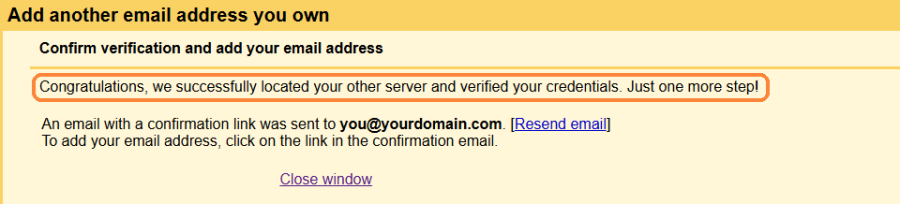
Every SMTP form asks for the same things: the server, the port and its matching security setting, your full address and the app password. The example below is Gmail’s own “Send mail as” form.
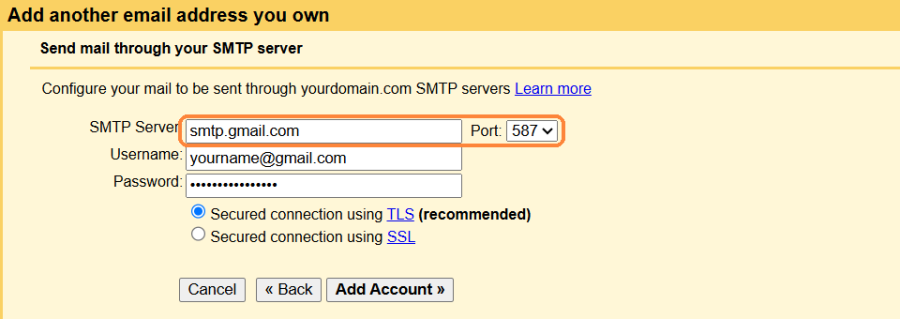
Save, then send a test to another address you can check. If it arrives, the connection works.
In a Desktop Mail Client
Outlook, Thunderbird and Apple Mail ask for the outgoing server under account or server settings. Tick “My outgoing server requires authentication” as well. Many now offer “Sign in with Google” for Gmail, which skips the app password.
In WordPress
WordPress can’t send through Gmail on its own, so you need an SMTP plugin. Use its “other SMTP” option with the values above. If the plugin has a Google option, it signs in with OAuth instead of an app password.
In an App or Script
For your own code, connect to smtp.gmail.com on port 587, start TLS, then sign in. For anything long-lived, Google recommends OAuth 2.0, which its SMTP server supports through the XOAUTH2 method.
Why Your Gmail SMTP Connection Is Failing
Find the error your app shows below. Most failures come down to the password, the port and security pairing, or the network.
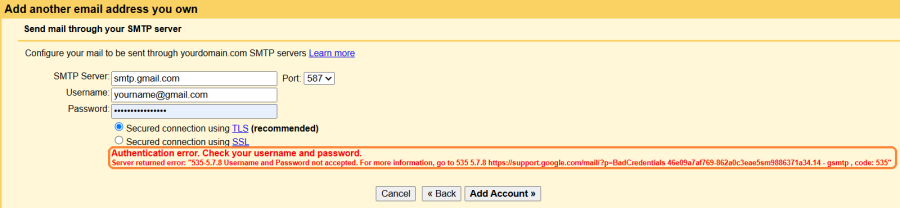
“Username and Password not accepted”
A 535 error means Gmail rejected the sign-in. Usually you used your Google password, pasted spaces into the app password, or changed your Google password since. Also check that the username is your full address.
“Application-specific password required”
Gmail returns this 534 error when 2-Step Verification is on and you entered your normal password. Use an app password from Step 2 instead.
“Must issue a STARTTLS command first”
A 530 error means the app connected on port 587 without starting encryption. Set the security option to TLS or STARTTLS, or switch to port 465 with SSL.
“Please log in through your web browser and then try again”
Google shows this 534 error when it wants you to confirm a sign-in it found unusual. Sign in to Gmail in a browser on the same network, approve any security alert, then try again.
Connection Timed Out or Refused
The connection never reached Gmail, so there’s no Gmail error. First rule out a mismatched port and security pair. If those are right, your network or web host may block outgoing SMTP, which is common on cloud servers and on port 25.
“Unauthenticated email … is not accepted due to domain’s DMARC policy”
This 550 error comes from the receiving side, not your login: the email reached Gmail, but its From domain failed DMARC. It often appears after moving an app from a sending service to Gmail, because that service’s SPF and DKIM no longer cover the emails. The authentication section below explains the fix.
“Daily user sending limit exceeded”
This 550 error means the account hit its daily sending limit, which differs by account type. Sending resumes as the rolling 24-hour window clears. Gmail’s daily sending limits explains the numbers.
A Successful SMTP Login Doesn’t Mean Your Email Is Authenticated
SMTP authentication only proves you’re allowed to hand a message to Gmail. It says nothing about whether the receiving server trusts the address in your From line. That second check decides where your email lands.
The check is DMARC, the domain in your From line must match a domain that passed SPF or DKIM. Send through a personal Gmail account with your company address in the From line, and the message is signed for gmail.com. It can then fail DMARC even though the login worked.
If you send from your own domain, set up SPF, DKIM and DMARC for it first. Our free generators give you the exact SPF record, DKIM record and DMARC record to paste. Google requires all three from anyone sending more than 5,000 messages a day to Gmail accounts.
Settings also can’t give a new or long-quiet mailbox a sending reputation. That only comes from steady, wanted sending over time. If you’ll send outreach from this mailbox, TrulyInbox can build that reputation first.
See our guide to warming a mailbox you send from over SMTP.
When Gmail SMTP Is the Wrong Choice
Gmail SMTP is built for one person’s mailbox. It’s right for a mail client, a low-volume contact form, an office device, or outreach from a real person’s mailbox. A few jobs need a different service.
- Transactional email at volume: Receipts, password resets and app alerts belong with a transactional email service, which adds delivery logs and webhooks.
- Newsletters and marketing: An opted-in list needs an email marketing platform with unsubscribe handling.
- Going past your limits: Spreading sends across extra Gmail accounts only risks suspension.
Get Gmail SMTP Working, Then Make It Land
Once the connection works, the next question is whether your email actually arrives. That depends on the mailbox’s reputation, not its settings.
Gmail SMTP Settings FAQs
What is the correct SMTP for Gmail?
Use smtp.gmail.com on port 587 with STARTTLS, or port 465 with SSL. Sign in with your full Gmail address and an app password.
Is Gmail SMTP 465 or 587?
Both work. Use 587 with TLS or STARTTLS, which most apps expect, or 465 if your app only offers SSL.
Why is Gmail SMTP not working?
Usually it’s your Google password instead of an app password, or a mismatched port and security setting. The troubleshooting section matches each error message to its fix.
How do I find my SMTP Gmail?
There’s nothing to look up, because the settings are the same for every Gmail account. The only thing you create yourself is the app password.