
The Outlook SMTP server for an Outlook.com, Hotmail or Live account is smtp-mail.outlook.com, on port 587 with STARTTLS. Connect with “Sign in with Microsoft” (OAuth), because Microsoft no longer accepts a plain password. Work and school accounts use the Office 365 SMTP settings further down.
This guide covers both sets of values, the setup steps with real screenshots, and fixes for common errors.
New to the protocol? Read what SMTP is first, and for a Google account, see our Gmail SMTP settings.
Outlook SMTP Settings for Outlook.com, Hotmail and Live
These Outlook.com and Hotmail SMTP settings work for every personal address ending in @outlook.com, @hotmail.com, @live.com or @msn.com. They come from Microsoft’s own settings page.
| Setting | Value |
|---|---|
| SMTP server (outgoing mail) | smtp-mail.outlook.com |
| SMTP port | 587 |
| Encryption | STARTTLS |
| Sign-in method | OAuth2 (“Sign in with Microsoft”), not your password |
| Username | Your full Outlook.com address |
| IMAP server (incoming mail) | outlook.office365.com, port 993, SSL/TLS |
| POP server (incoming mail) | outlook.office365.com, port 995, SSL/TLS |
Settings checked against Microsoft’s own documentation, and screenshots taken on our own test Outlook.com account, on 18 November 2026.
Many guides list smtp.office365.com for personal accounts. That’s the Microsoft 365 business server, and Microsoft doesn’t list it for Outlook.com.
Office 365 SMTP Settings for Microsoft 365 Work Accounts
If your address uses your employer’s or school’s own domain, you need the Microsoft 365 SMTP settings. You’ll also see them called Exchange Online SMTP settings or Outlook 365 SMTP settings.
| Setting | Value |
|---|---|
| SMTP server | smtp.office365.com |
| Port | 587 (recommended) or 25 |
| Encryption | STARTTLS, with TLS 1.2 or 1.3 |
| Username | The full address of a licensed Microsoft 365 mailbox |
| Sign-in method | OAuth recommended; password sign-in only while your admin allows it |
| Required first | SMTP AUTH turned on for that mailbox |
| IMAP server | outlook.office365.com, port 993, SSL/TLS |
Newer Microsoft 365 organisations have SMTP AUTH switched off, so turn it on first, as shown in the Office 365 section.
Which Outlook SMTP Port Should You Use: 587 or 465?
Use port 587 with STARTTLS. Outlook.com lists only 587, and Microsoft says a device that defaults to 465 can’t meet Microsoft 365’s TLS requirement. Many apps label STARTTLS as “TLS” and port 465’s encryption as “SSL”, so pick 587 with TLS (or STARTTLS). Microsoft 365 also accepts port 25, but many internet providers block it.
Why Your Outlook Password No Longer Works for SMTP
Microsoft ended basic authentication, meaning password sign-in, for personal accounts on 16 September 2024. Apps now need modern authentication (OAuth2), so choose the app’s “Sign in with Microsoft” option instead of typing a password.
If an app only offers a password box, it can’t send through Outlook.com. Microsoft still documents app passwords for older devices, but its settings page lists only OAuth2 for SMTP, so don’t rely on one. Older desktop versions, such as Outlook 2016 MSI and 2019 LTSC, also lack this sign-in for Outlook.com.
How to Set Up Outlook SMTP, Step by Step
These steps connect a personal Outlook.com account to another app, such as a mail client, a website plugin or a device. For a work account, turn on SMTP AUTH first, as shown in the Office 365 section.
Step 1: Turn on POP or IMAP in Outlook.com
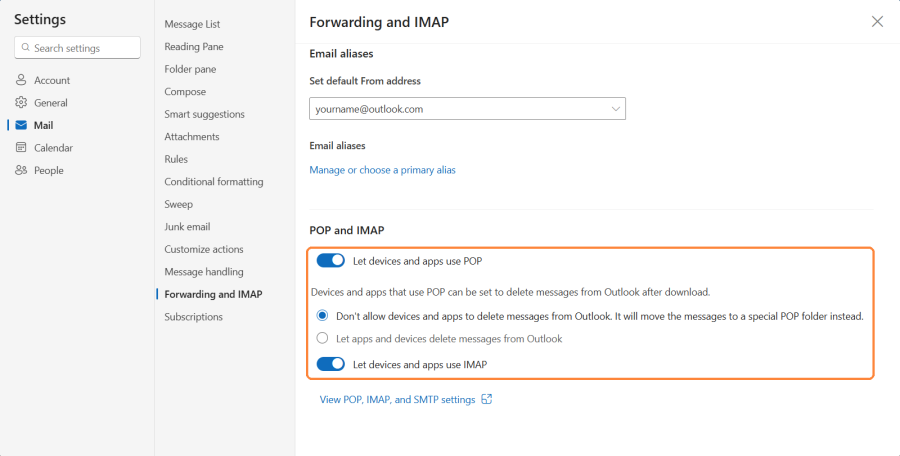
POP and IMAP are off by default, and most apps need one of them to sync your mail. In Outlook.com, open Settings, then Mail, then Forwarding and IMAP. Turn on “Let devices and apps use IMAP” (or POP), then select Save.
Step 2: Enter the SMTP Settings in Your App
In your app’s outgoing mail settings, enter smtp-mail.outlook.com, port 587 and STARTTLS, and set the authentication method to OAuth2. In Thunderbird, shown below, that opens Microsoft’s sign-in window to approve the app.
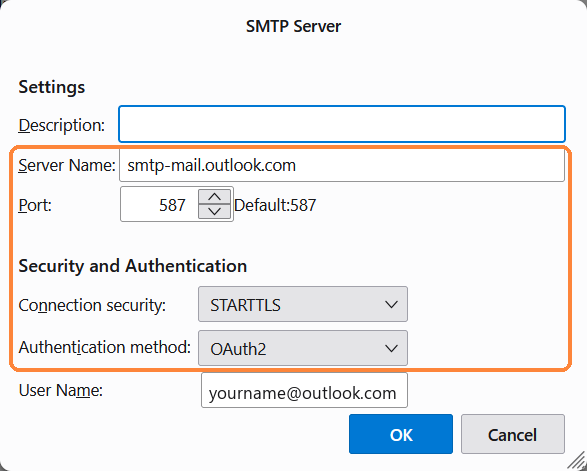
Use your full Outlook.com address. If your Microsoft account signs in with a non-Microsoft address, such as Gmail, try that sign-in address instead. In our test, Outlook refused the Outlook.com address and accepted the sign-in address.
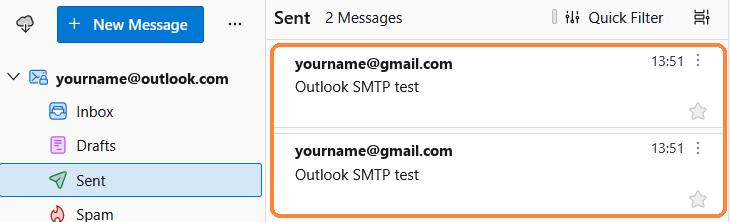
Step 3: Send a Test Email
Save the settings and send a test message to another address you can check. If it arrives, the connection works. If the app shows an error, find it in the troubleshooting section.
Where Are the SMTP Settings in Outlook?
Your own Outlook.com or Microsoft 365 account needs no SMTP values in the Outlook apps. Just enter your address and select Connect. The manual SMTP fields are for adding another provider’s account over IMAP or POP.
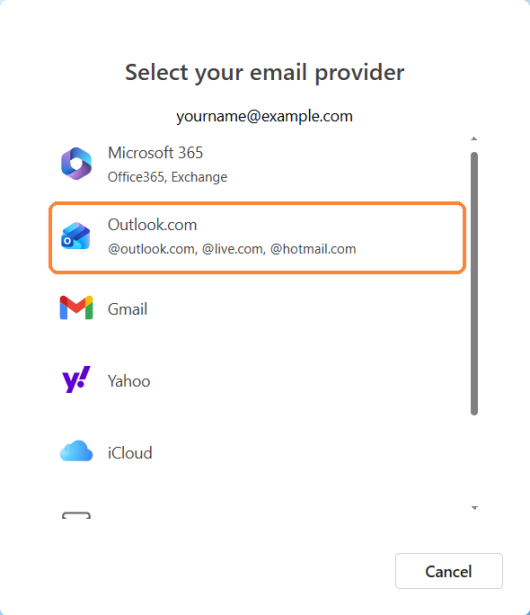
Classic Outlook for Windows
Select File, then Account Settings, then Server Settings, and open Outgoing mail to see the server, port and sign-in details. For a new account, select File, then Add Account, then Advanced options and “Let me set up my account manually”.
New Outlook for Windows
Go to View, then View settings, then Accounts and Your accounts, and select Add Account. For another provider’s account, enter the address and choose IMAP to reach the SMTP fields. New Outlook pre-selects SSL/TLS, so switch it to StartTLS when you use port 587.
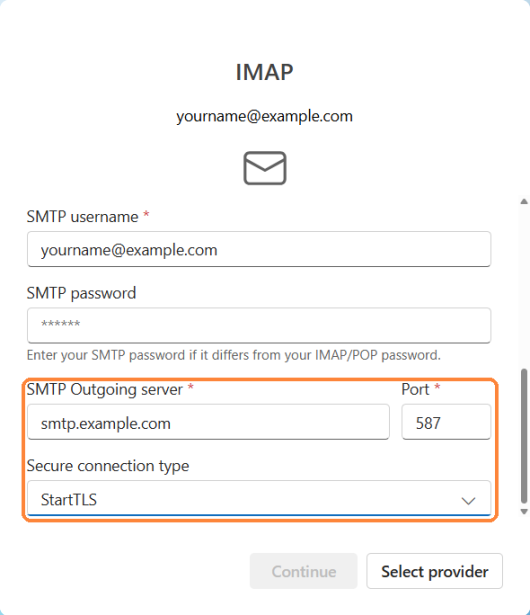
Microsoft documents no screen for editing an existing account’s SMTP server. To fix a sign-in problem, remove the account and add it again.
Outlook for Mac
In the Outlook menu, select Settings, then Accounts, and select the + button. To check the outgoing server, select the account and open More Options under Outgoing server.
Outlook on Android and iPhone
In the app, open Settings, then Add Account, and choose IMAP. Turn on Advanced settings on Android, or “Use Advanced Settings” on iPhone, to enter the server details.
Office 365 SMTP: Turn on SMTP AUTH and Plan for December 2026
Microsoft 365 accepts authenticated client submission only when SMTP AUTH is on for the mailbox. It’s off for organisations created after January 2020, which is why printers that scan to email, apps and scripts often fail. An admin with Exchange permissions can turn on SMTP AUTH for Office 365 one mailbox at a time.
Turn on SMTP AUTH for One Mailbox
- Open the admin center: In the Microsoft 365 admin center, go to Users, then Active users.
- Pick the mailbox: Select the user, then the Mail tab.
- Open email apps: Under Email apps, select Manage email apps.
- Turn it on: Tick Authenticated SMTP, then select Save changes.
For the whole organisation, the switch is in the Exchange admin center under Settings, then Mail flow. If security defaults are on, Microsoft says SMTP AUTH stays blocked anyway.
What Changes at the End of December 2026
Microsoft is retiring basic authentication for SMTP AUTH, not SMTP itself. According to the Exchange Team’s latest update, it will be “disabled by default for existing tenants” at the end of December 2026. Admins will still be able to switch it back on.
New tenants won’t have it by default, and Microsoft will announce the final removal date in the second half of 2027. The date has already moved twice, so plan now. The SMTP AUTH Clients report in the Exchange admin center shows what still signs in with a password (TlsAuthLogin) rather than OAuth (XOAUTH2).
If an app or device can’t move to OAuth, these are the options Microsoft names:
| Option | How it signs in | The catch |
|---|---|---|
| SMTP AUTH with OAuth (XOAUTH2) | Microsoft sign-in token | The app must support OAuth, and it still needs a licensed mailbox |
| Office 365 SMTP relay (connector) | Certificate or a static IP address | An admin creates the connector, and the IP can’t be shared or dynamic |
| Direct Send | None | Internal recipients only, and new tenants block it by default |
| Microsoft Graph sendMail | Entra app registration with Mail.Send | The app sends through Microsoft’s Graph API instead of SMTP |
| High Volume Email | HVE account or OAuth | Internal recipients only, and it’s paid |
| Azure Communication Services Email | Azure | A separate Azure service, but it reaches outside recipients |
Scroll the table sideways to see every column.
Deadline status last checked 18 November 2026.
Why Your Outlook SMTP Connection Is Failing
Find the error your app shows below. Most failures come down to the sign-in method, the port, or a setting that’s switched off.
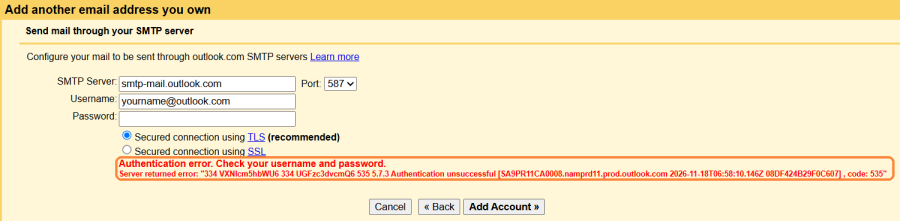
“535 5.7.3 Authentication unsuccessful”
Outlook rejected the sign-in. On Outlook.com, the app is usually sending a password instead of using Microsoft’s sign-in. On Microsoft 365, check SMTP AUTH for the mailbox and security defaults. If Microsoft’s sign-in still fails, check the username, as explained in Step 2.
“5.7.57 Client not authenticated to send mail”
The app reached smtp.office365.com without signing in. Turn on authentication in the app and use a licensed mailbox’s credentials.
“5.7.60 Client does not have permissions to send as this sender”
The From address doesn’t match the mailbox you signed in with. Send from that mailbox, or ask your admin for Send As permission.
IMAP Errors After Adding the Account to a Second App
Outlook.com can block IMAP when one account is set up in several apps. At account.live.com/activity, find the sign-in under Recent activity and select “This was me”.
“Your Account Has Been Temporarily Blocked”
Outlook.com can block an account for a while after unusual sign-in activity. Sign in at Outlook.com and follow the prompts to unblock it with a security code.
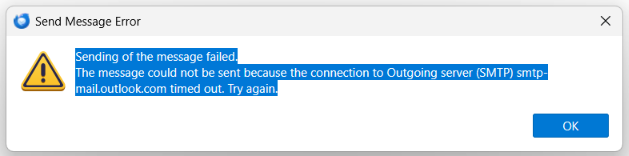
Connection Timed Out or Refused
Check port 587 with TLS or STARTTLS first. If that’s right, your network, web host or security software may be blocking the connection. On Microsoft 365, devices that can’t use TLS 1.2 also fail.
Sending Limit Reached
Microsoft 365 throttles each mailbox at 10,000 recipients a day and 30 messages a minute. Outlook.com allows 5,000 recipients a day for Microsoft 365 subscribers and less for free accounts. New accounts start lower still.
A Working SMTP Login Doesn’t Mean Your Email Lands
SMTP sign-in only proves you’re allowed to hand a message to Outlook. Whether the receiving server trusts your From domain depends on SPF, DKIM and DMARC.
On your own domain, set up SPF, DKIM and DMARC for Microsoft 365 with our free SPF record, DKIM record and DMARC record generators.
Our Outlook deliverability guide covers what Microsoft checks when your email arrives.
A new or quiet mailbox also has no sending reputation, whatever its settings. If you’ll send outreach from it, TrulyInbox can build that reputation first.
See our guide to warming a mailbox you send from over SMTP.
Get Outlook SMTP Working, Then Make It Land
Your account type sets the server, Microsoft’s sign-in decides whether it connects, and the error tells you what broke. After that, whether your email arrives depends on the mailbox’s reputation, not its settings.
Outlook SMTP Settings FAQs
Where are the SMTP settings in Outlook?
In classic Outlook for Windows, they’re under File, then Account Settings, then Server Settings and Outgoing mail. Your own Outlook.com or Microsoft 365 account needs none, because Outlook connects when you enter your address.
How do I set up SMTP in Outlook?
For another provider’s account, select File, then Add Account, choose IMAP under advanced setup, and enter its outgoing server and port. For your own Outlook.com account, enter your address and select Connect.
Which port should I use for SMTP, 587 or 465?
Use 587 with STARTTLS. Outlook.com lists only 587, and port 465 doesn’t meet Microsoft 365’s TLS requirement.
What is my SMTP server for Office 365?
It’s smtp.office365.com on port 587 with STARTTLS. The mailbox needs a licence and SMTP AUTH turned on.
What is the outgoing mail server for Office 365?
It’s smtp.office365.com, with TLS 1.2 or 1.3. Personal Outlook.com accounts use smtp-mail.outlook.com instead.
Can I still use a password for Office 365 SMTP after December 2026?
Only if your admin turns password sign-in back on, and only until the final removal date. Microsoft will announce that date in the second half of 2027, so moving to OAuth is the lasting fix.