
To set up SPF, DKIM and DMARC for Google Workspace, you publish three DNS records in order. SPF authorizes Google’s servers, DKIM signs your mail, and DMARC tells receivers what to do when a check fails. You then verify all three pass before tightening anything.
This guide gives the exact records and Admin console steps, plus the fixes for errors like DKIM stuck on “Not authenticating”. On Microsoft 365 instead? Follow the Microsoft 365 version of this guide.
The quick version:
- Add
v=spf1 include:_spf.google.com ~allas a TXT record at your root domain (@). - In the Admin console, open Apps > Google Workspace > Gmail > Authenticate email and generate a 2048-bit DKIM key.
- Publish the key at
google._domainkey, then click Start authentication. - Wait 48 hours, then add
v=DMARC1; p=none; rua=mailto:dmarc@yourdomain.comat_dmarc. - Send a test to an outside mailbox and check Show original for three passes.
What SPF, DKIM and DMARC Do in Google Workspace
SPF lists the servers allowed to send mail for your domain. DKIM adds a signature to each message, so Gmail can confirm it wasn’t altered and really came from you. DMARC sets what receivers do when those checks fail, and reports who sends as your domain.
For other providers, see the general guide for all providers.
| Record | Type | Host | What it does |
|---|---|---|---|
| SPF | TXT | @ (root domain) | Authorizes Google’s servers to send for you |
| DKIM | TXT | google._domainkey | Signs each message with your 2048-bit key |
| DMARC | TXT | _dmarc | Sets the fail policy and turns on reports |
Before You Start
You need super administrator access to the Google Admin console, plus login access to your DNS host, such as Cloudflare or GoDaddy. On a new Workspace account, Google makes you wait 24 to 72 hours after turning on Gmail before it generates a DKIM key. Trying earlier returns an error, so nothing is broken.
List every tool that sends email as your domain, from your CRM to your outreach platform, because SPF and DKIM must cover each one. Each record can take up to 48 hours to take effect. Starting DMARC at p=none is safe, since it changes nothing about delivery while you read the reports.
Step 1: Set Up the Google Workspace SPF Record
If Google Workspace is your only sender, the SPF record is a single TXT record at the root of your domain. Google recommends the soft-fail ~all ending, which marks unlisted senders as suspicious rather than rejecting them. Switch to -all only once you’re sure every sender is listed.
| Type | Host | Value |
|---|---|---|
| TXT | @ | v=spf1 include:_spf.google.com ~all |
Your domain can have only one SPF record. If one already exists, add include:_spf.google.com to it rather than publishing a second, because two SPF records cause a PermError and both fail. A domain using Google plus a CRM would read v=spf1 include:_spf.google.com include:yourcrm.example ~all.
SPF allows at most 10 DNS lookups, and Google’s include now costs just one, because _spf.google.com lists Google’s IP ranges directly. That leaves nine for your other senders. Subdomains don’t inherit the root’s record, so each sending subdomain, such as outreach.yourdomain.com, needs its own. For the basics, see what an SPF record is.
Build your SPF record in seconds with the free SPF Generator.
Step 2: Set Up Google Workspace DKIM in the Admin Console
Google Workspace DKIM is the step most setups get stuck on. You generate a key in the Admin console, publish it at your DNS host, then switch signing on.
For background, see what DKIM is.
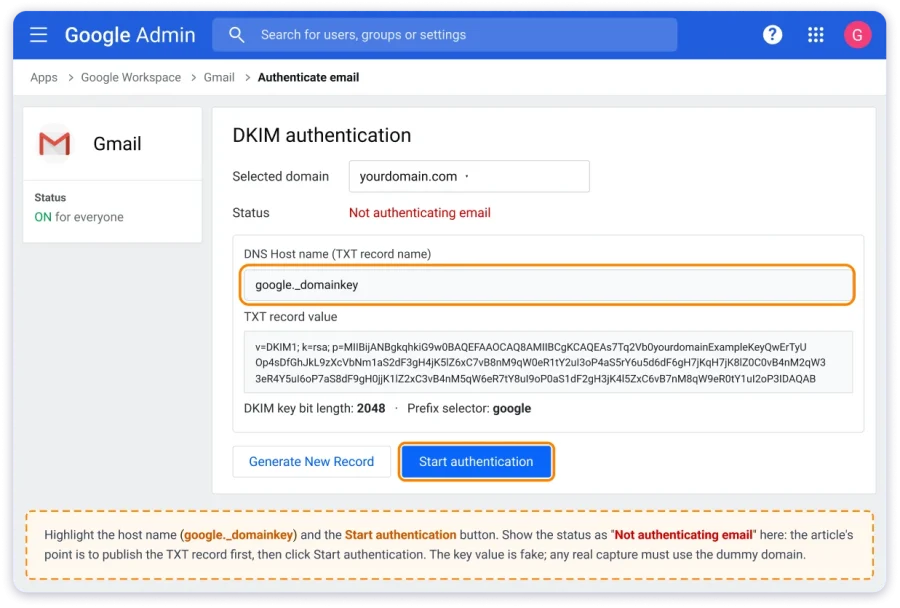
- In the Google Admin console, go to Menu > Apps > Google Workspace > Gmail > Authenticate email.
- Pick the domain under Selected domain and click Generate New Record.
- Choose a 2048-bit key and keep the default prefix selector,
google. - Copy the TXT record and publish it at your DNS host, using the host and value below.
- Check that
google._domainkey.yourdomain.comreturns your full key in Google’s Admin Toolbox Dig tool. - Return and click Start authentication. The status changes to “Authenticating email with DKIM”.
| Type | Host | Value |
|---|---|---|
| TXT | google._domainkey | v=DKIM1; k=rsa; p=(your 2048-bit key from the Admin console) |
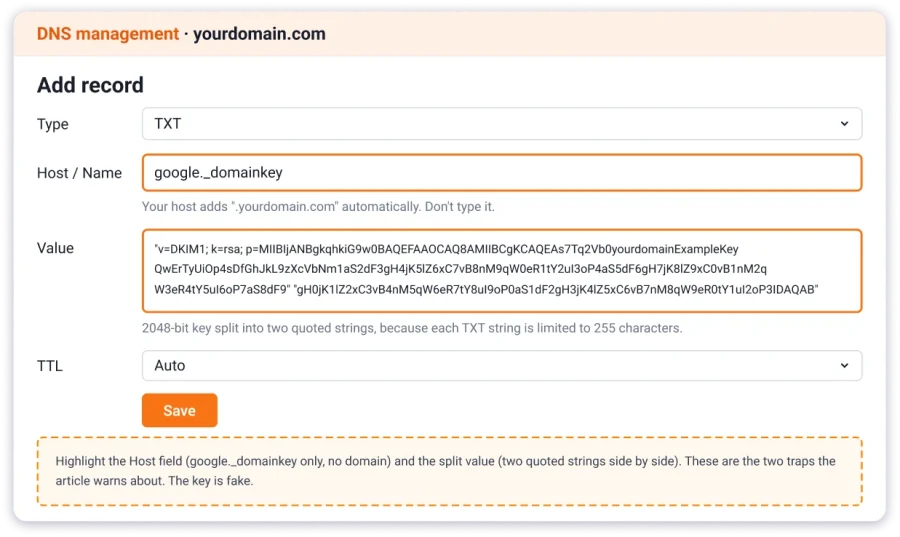
Three traps catch most people at this step:
- The key is too long for one string. Google notes most DKIM TXT records allow 255 characters, and a 2048-bit key is longer. Split it into quoted strings as your host requires, or generate a 1024-bit key. One Route 53 user found, “1024 works. 2048 is not getting recognized by Google” (r/DMARC, Dec 2025).
- The host adds your domain twice. Many DNS hosts append your domain automatically, so typing the full name creates
google._domainkey.yourdomain.com.yourdomain.com. Enter onlygoogle._domainkey. - Every domain needs its own key. Google requires a unique DKIM key for each domain on the tenant, so every secondary or outreach domain needs its own record.

Step 3: Add a Google Workspace DMARC Record
With SPF and DKIM in place, wait 48 hours as Google advises, then add your Google Workspace DMARC record. DMARC works on top of SPF and DKIM, because it checks that one of them passes for the domain in your From address. Start in monitoring mode, with a reporting address.
| Type | Host | Value |
|---|---|---|
| TXT | _dmarc | v=DMARC1; p=none; rua=mailto:dmarc@yourdomain.com |
A p=none policy changes nothing about delivery. It turns on reports that show every service sending as your domain, and whether each one passes. Once the reports show SPF or DKIM aligned for every legitimate sender, move to p=quarantine, then p=reject. Send the reports to a dedicated mailbox, a Google Group or a DMARC reporting tool.
Keep the default relaxed alignment, which Google says “typically provides sufficient spoofing protection”, because strict alignment can reject mail from your own subdomains. A quarantine or reject policy at pct=100 is also required for BIMI, which can show your logo in Gmail. See the enforcement ladder for each step and what DMARC is for the basics.
Generate a ready-to-paste record with the free DMARC Generator.
Step 4: Verify All Three Are Passing
Send a test from your Workspace mailbox to an outside address you control, such as a personal Gmail account. Don’t email yourself: Google states you “can’t verify DKIM is on by sending yourself a test message.” Open the message, choose More, then Show original, and look for PASS next to SPF, DKIM and DMARC.
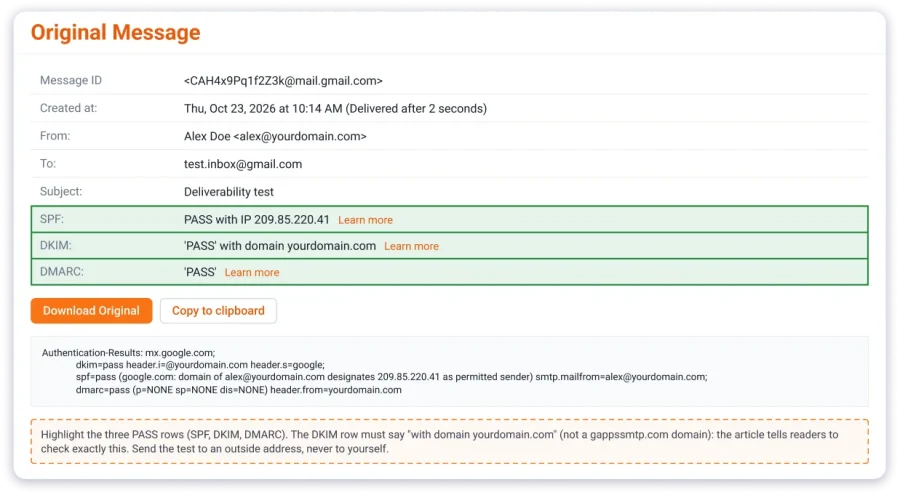
Read the DKIM line closely. It should show a pass “with domain yourdomain.com”. If it names a gappssmtp.com domain instead, Google is still signing with its default key, so custom DKIM isn’t on yet. Allow up to 48 hours after each change before expecting a pass.
Paste your headers into the free Header Analyzer for a plain-English read of every check.
Troubleshooting Google Workspace SPF, DKIM and DMARC
Most failures come down to a handful of causes, and the symptom usually points to the fix. Work down this table before regenerating anything.
| Symptom | Likely cause | Fix |
|---|---|---|
| DKIM stays on “Not authenticating” | Record not published, not propagated, or Start authentication never clicked | Confirm the record resolves, wait, then click Start authentication |
| DKIM fails after publishing | 2048-bit key truncated or split wrongly by the DNS host | Re-enter it as quoted strings, or switch to a 1024-bit key |
| Record not found | Host appended your domain twice | Re-enter the host as google._domainkey only |
| Two DKIM records | Registrar’s auto-created record plus your own | Delete both, regenerate, publish one |
| DKIM passes but DMARC fails | Mail signed with Google’s default gappssmtp.com key | Turn on DKIM for your own domain |
| SPF PermError | Two SPF records, or more than 10 lookups | Merge into one record and trim includes |
| DMARC shows as inactive | Record published at the wrong host | Use _dmarc as the host |
| DKIM fails only on forwarded or list mail | A forwarder changed the message (“body hash did not verify”) | Expected; confirm direct mail passes, and watch reports before moving to reject |
The gappssmtp row confuses people because DKIM shows as a pass. Until you turn on custom DKIM, Google signs with its own gappssmtp.com domain, which doesn’t match your From domain. Ordinary mail can still pass DMARC through SPF, but forwarded mail and some Google-generated mail, such as Calendar invites, fail.
If Gmail bounces your mail, the code tells you which record to fix (Google’s full list):
| Code | What it means | Fix |
|---|---|---|
4.7.26 / 5.7.26 | Unauthenticated: neither SPF nor DKIM passed, or DMARC policy rejected it | SPF and DKIM |
4.7.27 / 5.7.27 | SPF didn’t pass | SPF |
4.7.30 / 5.7.30 | DKIM didn’t pass | DKIM |
4.7.32 / 5.7.32 | From: header isn’t aligned | DKIM on your own domain |
4.7.40 / 5.7.40 | No DMARC record | DMARC |
Codes starting with 4 are temporary rate limits, while codes starting with 5 are hard blocks.
For other rejections, see our guide to 550 permanent failure error codes.
SPF, DKIM and DMARC for Cold Outreach Senders
Gmail’s bulk-sender rules cover mail sent to personal Gmail accounts. Google’s FAQ states they “don’t apply to messages sent to Google Workspace accounts”, and most B2B prospects sit on Workspace or Microsoft 365. Authentication still shapes how those business inboxes filter you, as our Gmail deliverability guide explains.
Every tool that sends as your domain needs covering, but not always in SPF:
| How the tool sends | Add it to SPF? | What makes DMARC pass |
|---|---|---|
| Through your connected Google mailbox (OAuth or Gmail SMTP) | No | Your Google Workspace DKIM |
| From its own servers as your domain (CRMs, email platforms) | Only if its docs ask | The tool’s DKIM records, usually CNAMEs |
| Through an SMTP relay you run | Yes | SPF, or DKIM you sign yourself |
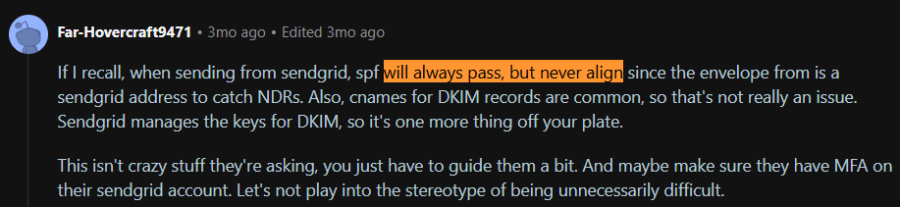
DKIM, not SPF, usually carries DMARC for third-party senders. As one sysadmin noted, SendGrid’s SPF “will always pass, but never align” because its envelope sender is SendGrid’s own address (r/sysadmin, Jul 2026). Check each tool’s domain-authentication page and publish exactly what it asks for.
Two more rules matter across many inboxes. Google counts all mail from the same primary domain toward the 5,000-a-day bulk threshold, so spreading volume across subdomains doesn’t avoid it. When rotating a DKIM key, generate it under a new prefix selector, publish it, and confirm it resolves before clicking Start authentication.
What Authentication Won’t Fix
Passing SPF, DKIM and DMARC gets your mail through the door, not into the inbox. Placement still depends on your domain’s reputation, how recipients engage and whether new mailboxes were warmed up. For personal Gmail recipients, you can watch reputation in Google Postmaster Tools.
Authentication tells receivers who you are, while warm-up builds the sending history that earns the inbox. New mailboxes see a noticeable improvement in 2 to 3 weeks and a full cycle of 4 to 6, so warm up your Workspace mailboxes before your first campaign.
Frequently Asked Questions
How Do I Enable DKIM in Google Workspace?
In the Admin console, go to Apps > Google Workspace > Gmail > Authenticate email, select your domain and click Generate New Record. Publish the TXT record at google._domainkey with your DNS host, then return and click Start authentication.
What Is the SPF Record for Google Workspace?
The record is v=spf1 include:_spf.google.com ~all, published as a TXT record at your root domain. If you already have an SPF record, add the Google include to it instead of creating a second one.
How Do I Set Up DMARC for Google Workspace?
Wait 48 hours after SPF and DKIM, then add a TXT record at _dmarc with v=DMARC1; p=none; rua=mailto:dmarc@yourdomain.com. Read the reports, then move to quarantine and reject once every legitimate sender passes.
Why Does DKIM Pass but DMARC Fail?
Usually because Google is signing with its default gappssmtp.com key, which doesn’t match your From domain. Turn on DKIM for your own domain in the Admin console, then check Show original for a DKIM pass with your domain.
Do Gmail’s Bulk-Sender Rules Apply to Google Workspace Recipients?
No. Google’s FAQ states its sender guidelines don’t apply to messages sent to Google Workspace accounts. They cover mail to personal Gmail addresses, though authentication still affects how Workspace inboxes filter you.
How Long Does Google Workspace DKIM Take to Work?
Google says up to 48 hours after you add the key and click Start authentication. On a new account, you may also wait 24 to 72 hours after turning on Gmail before you can generate the key.
How Do I Fix “Gmail Requires All Senders to Authenticate With Either SPF or DKIM”?
That bounce, 550 5.7.26, means neither SPF nor DKIM passed for the sending domain. Publish the SPF record from Step 1, turn on DKIM in Step 2, and check both pass in Show original before resending. If they pass and the error continues, look for another tool sending as your domain.